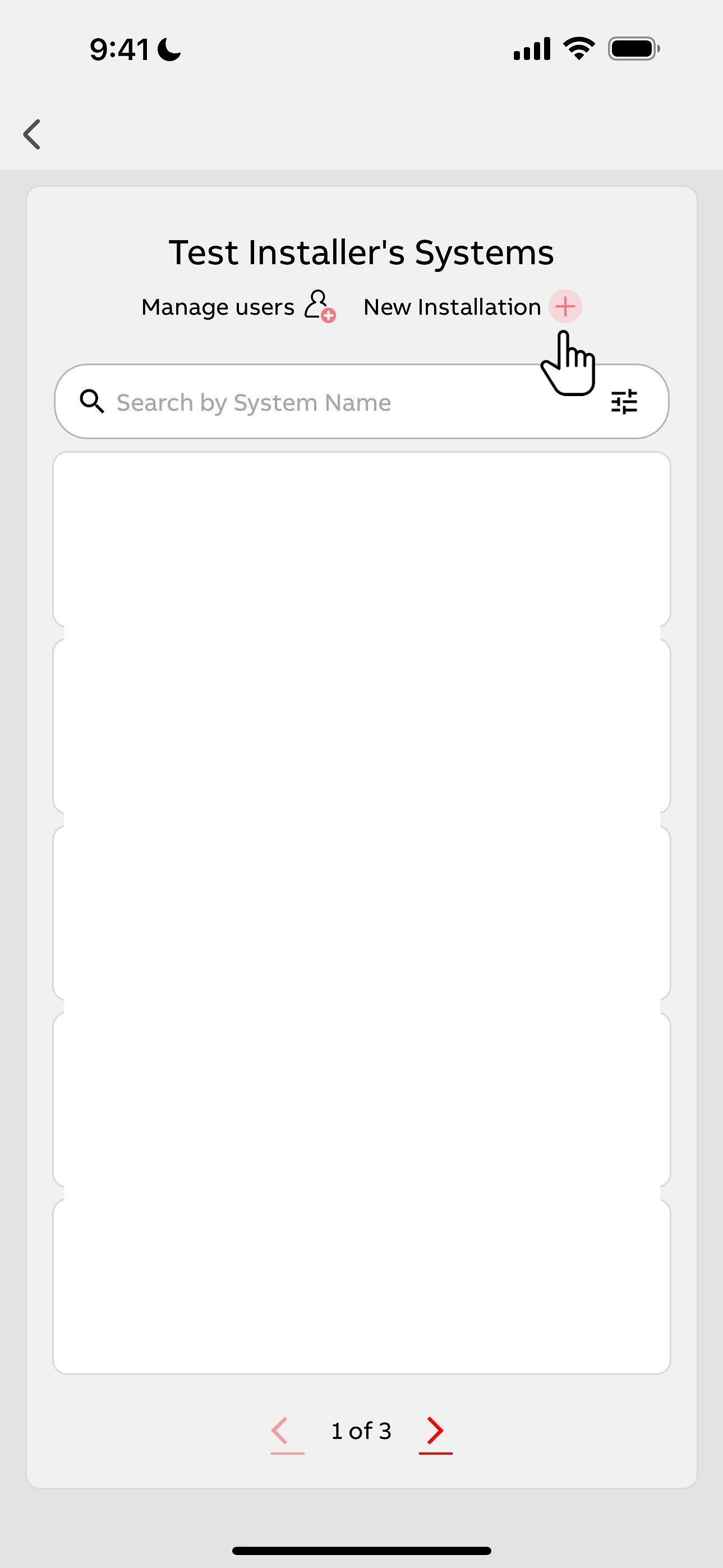
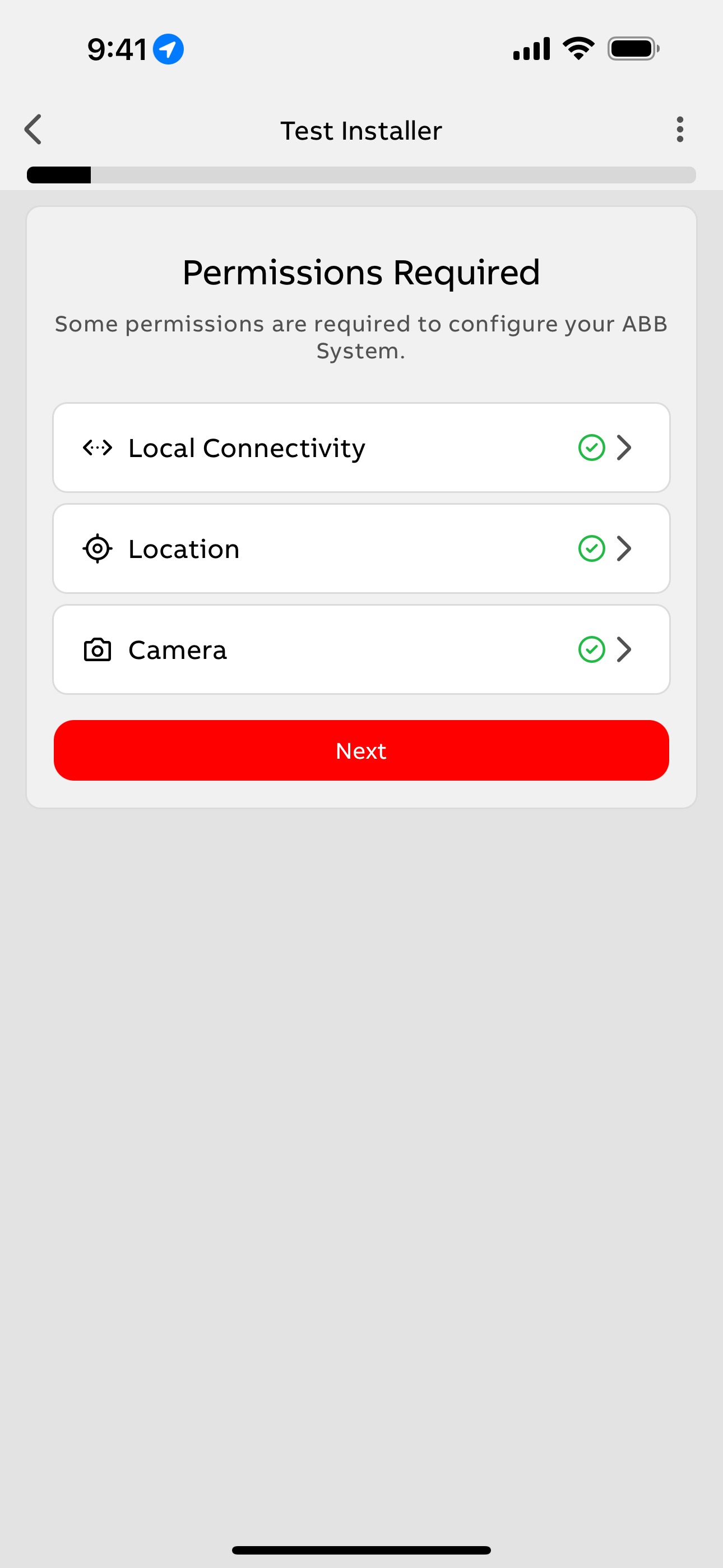
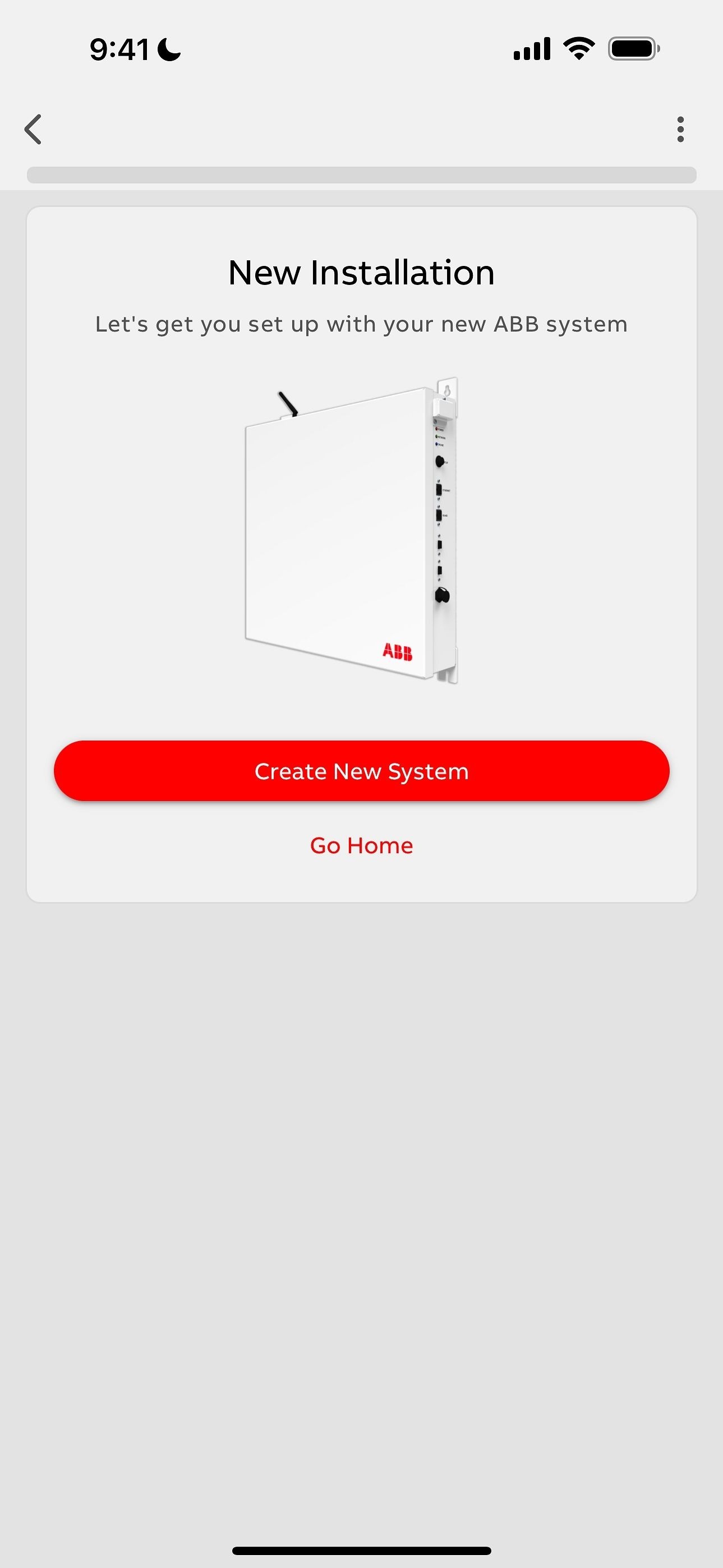
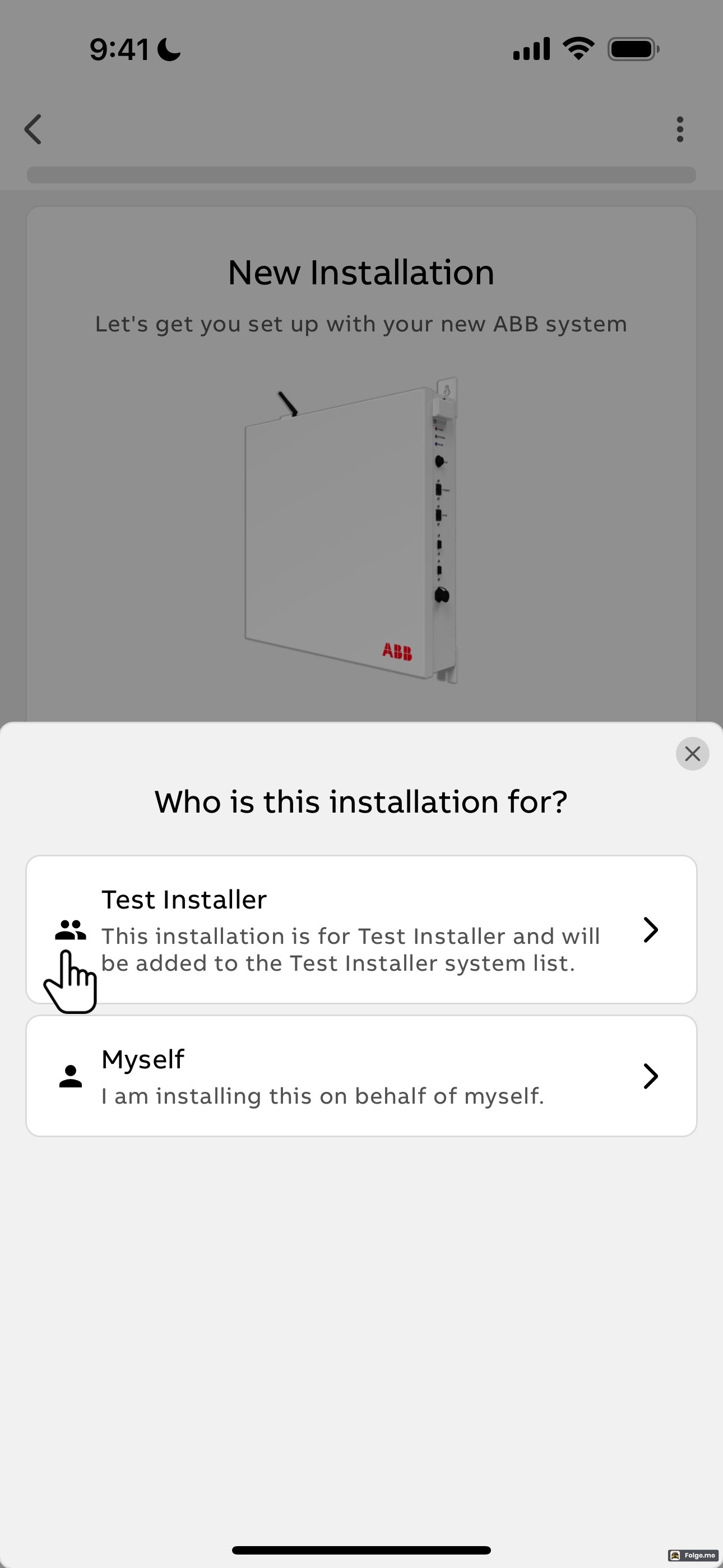
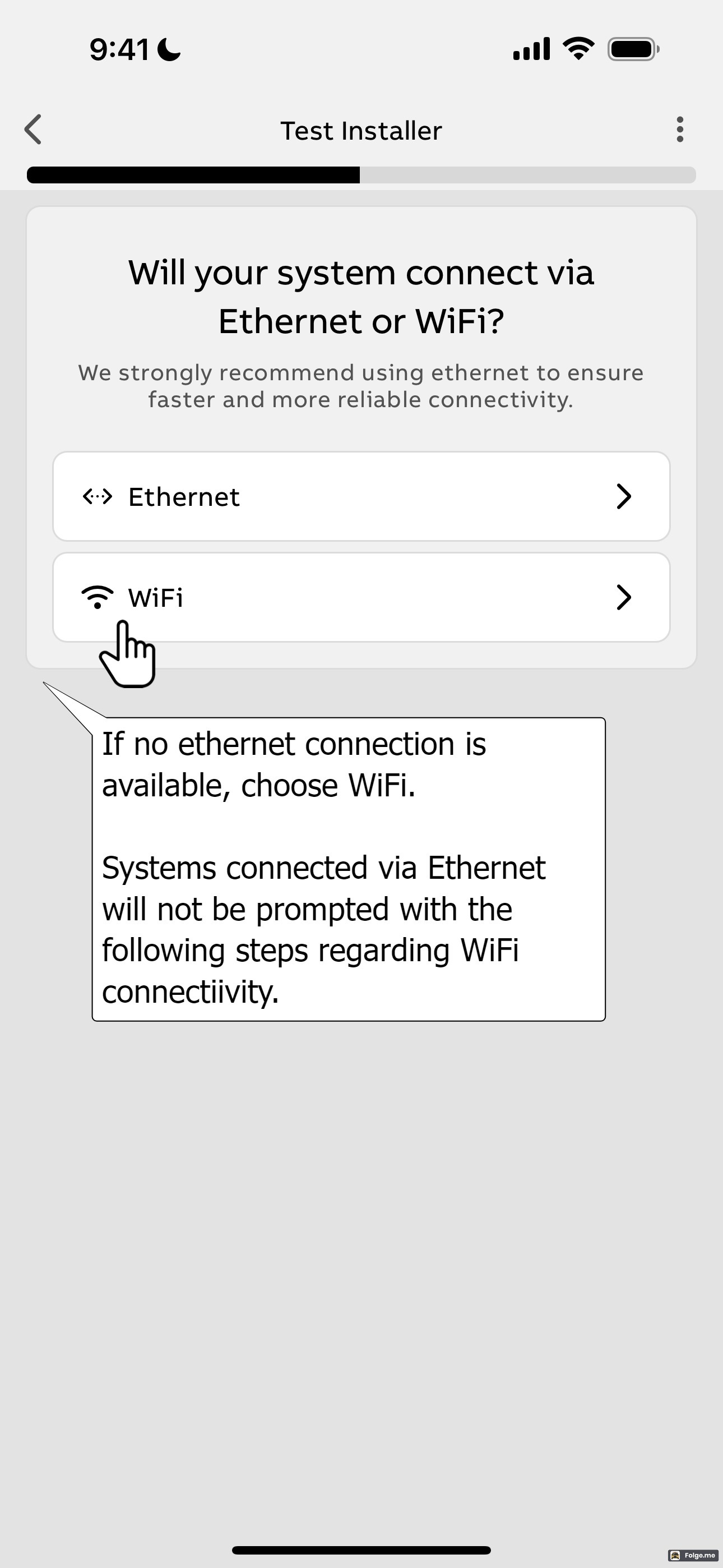
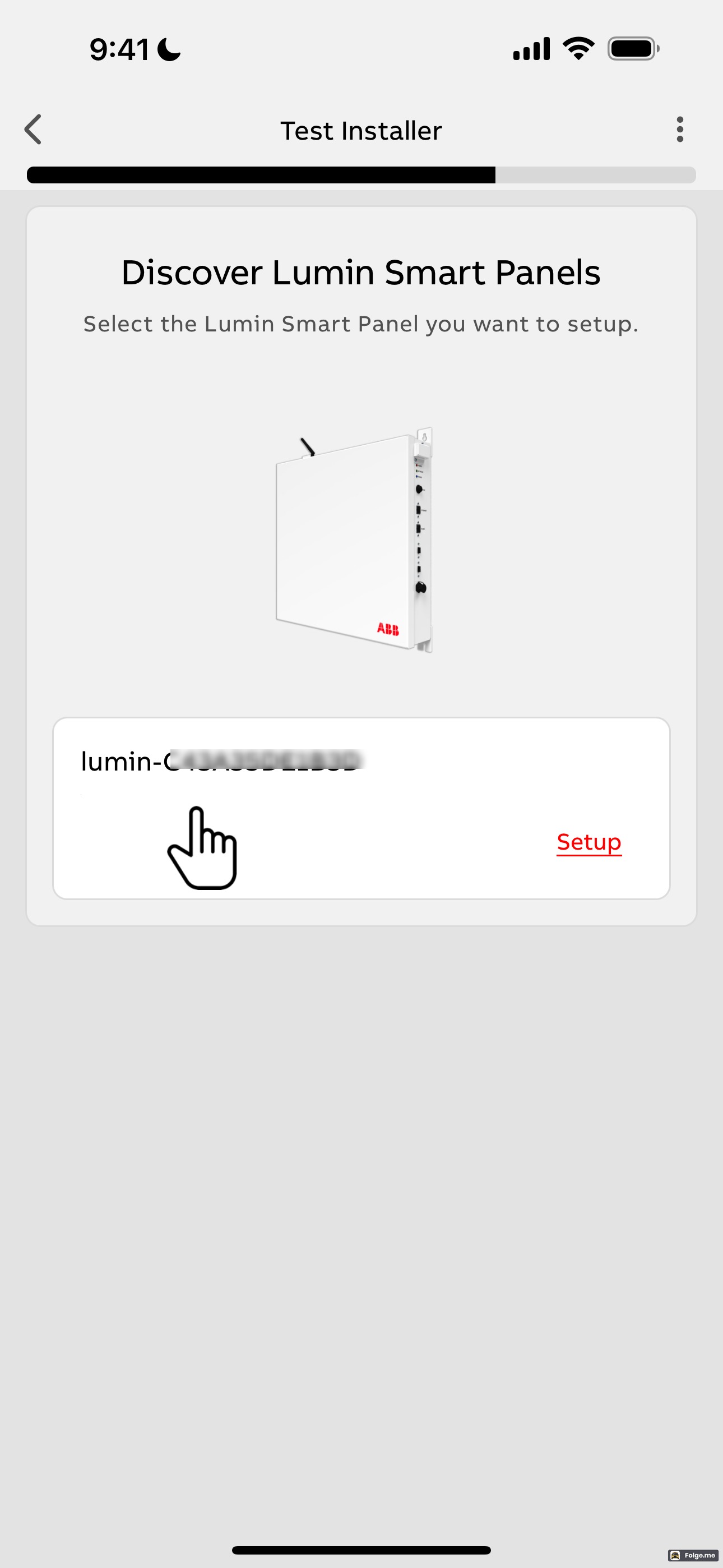
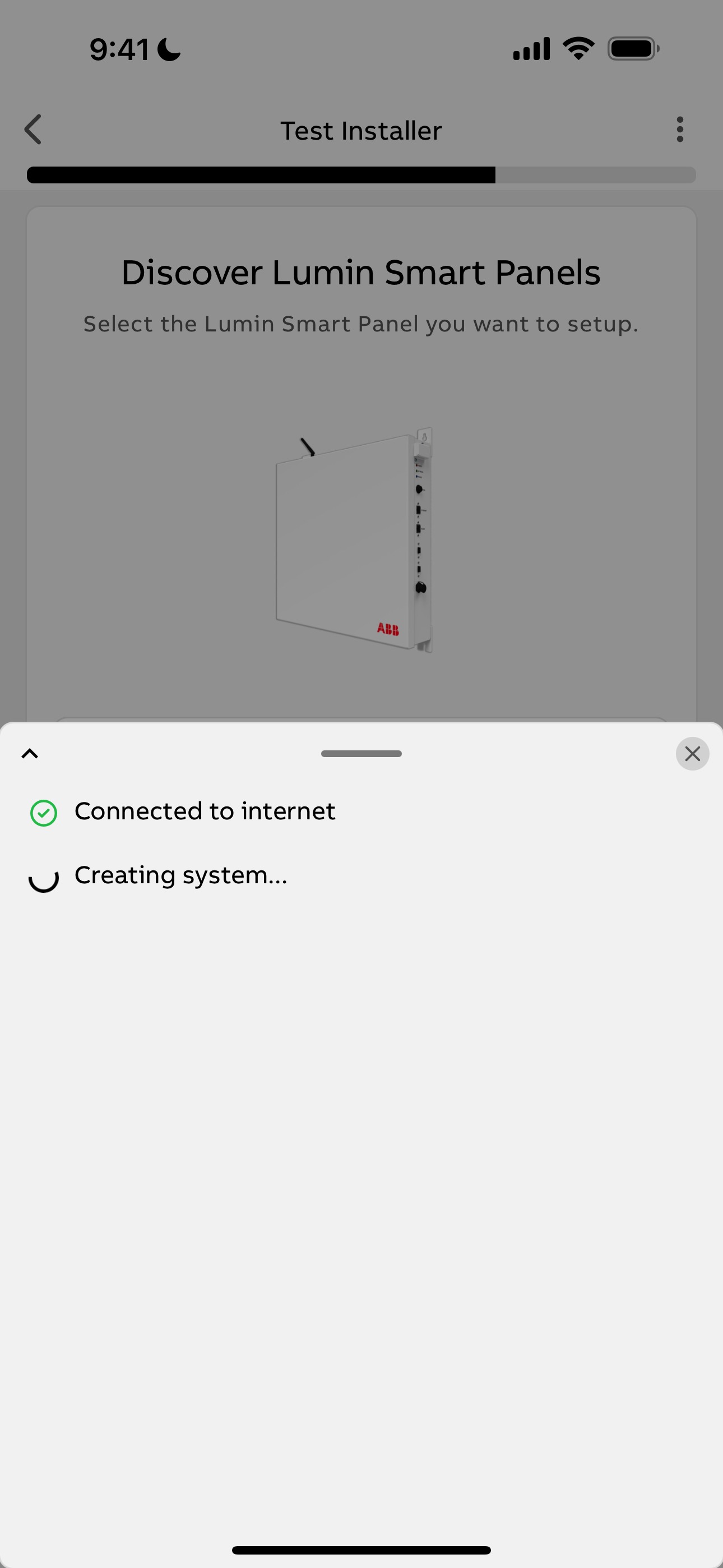
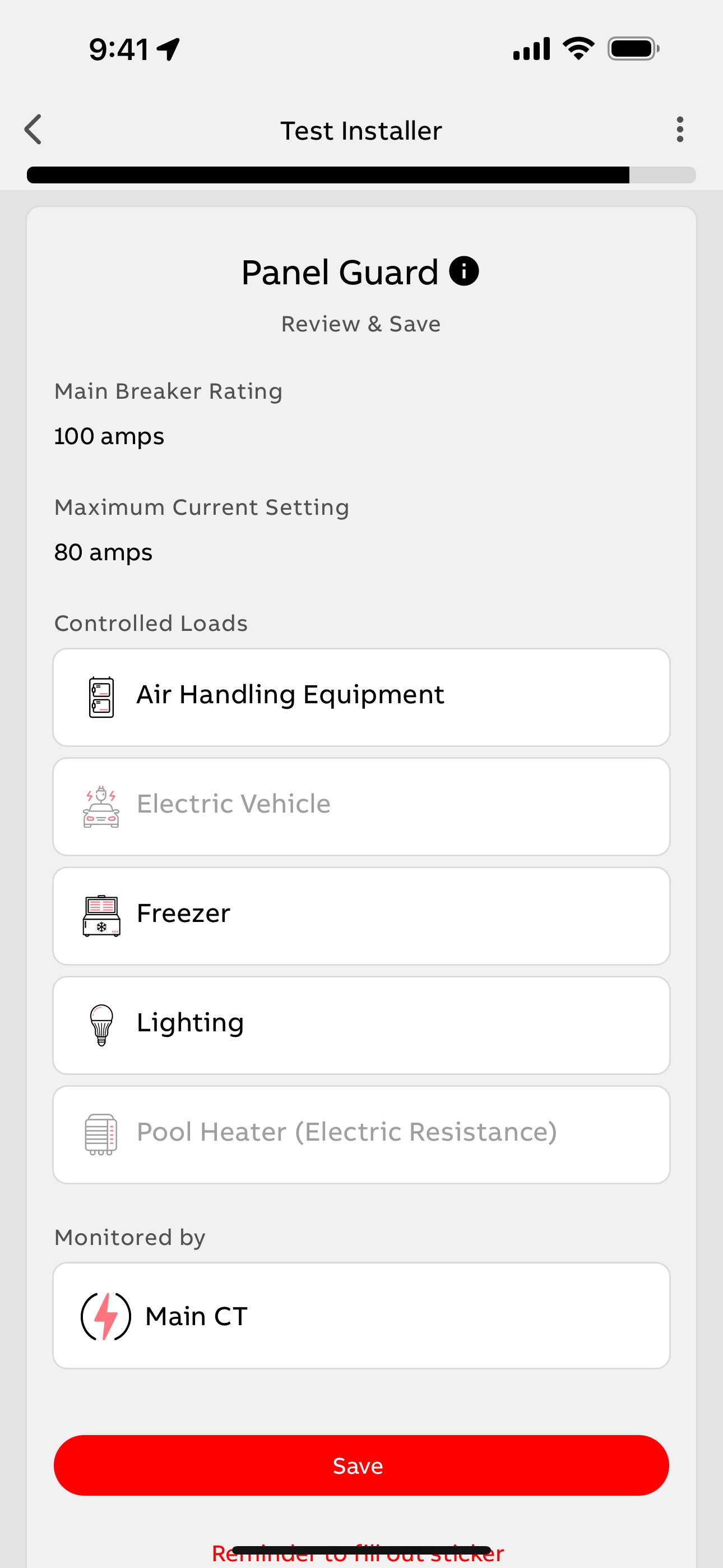
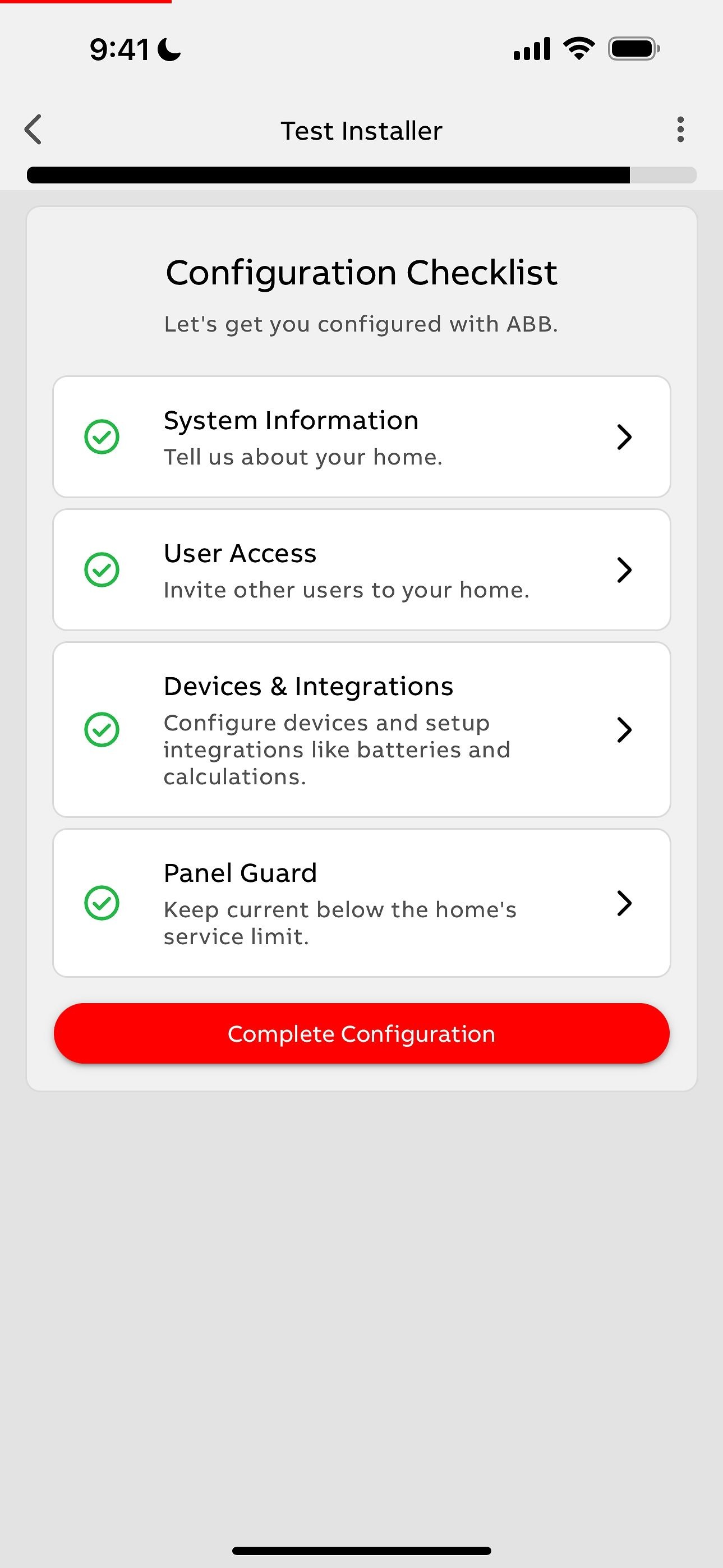
The steps below illustrate how to commission a Lumin Smart Panel to run Panel Guard. In Tier 1 systems (2025 and beyond), this process is identical for Android and iOS mobile devices. Note that this process and the Panel Guard feature is only available on the Lumin Energy app, not the Lumin Smart app.
Begin by opening the menu by selecting the three horizontal bars at the top left of the app, then follow the steps below.
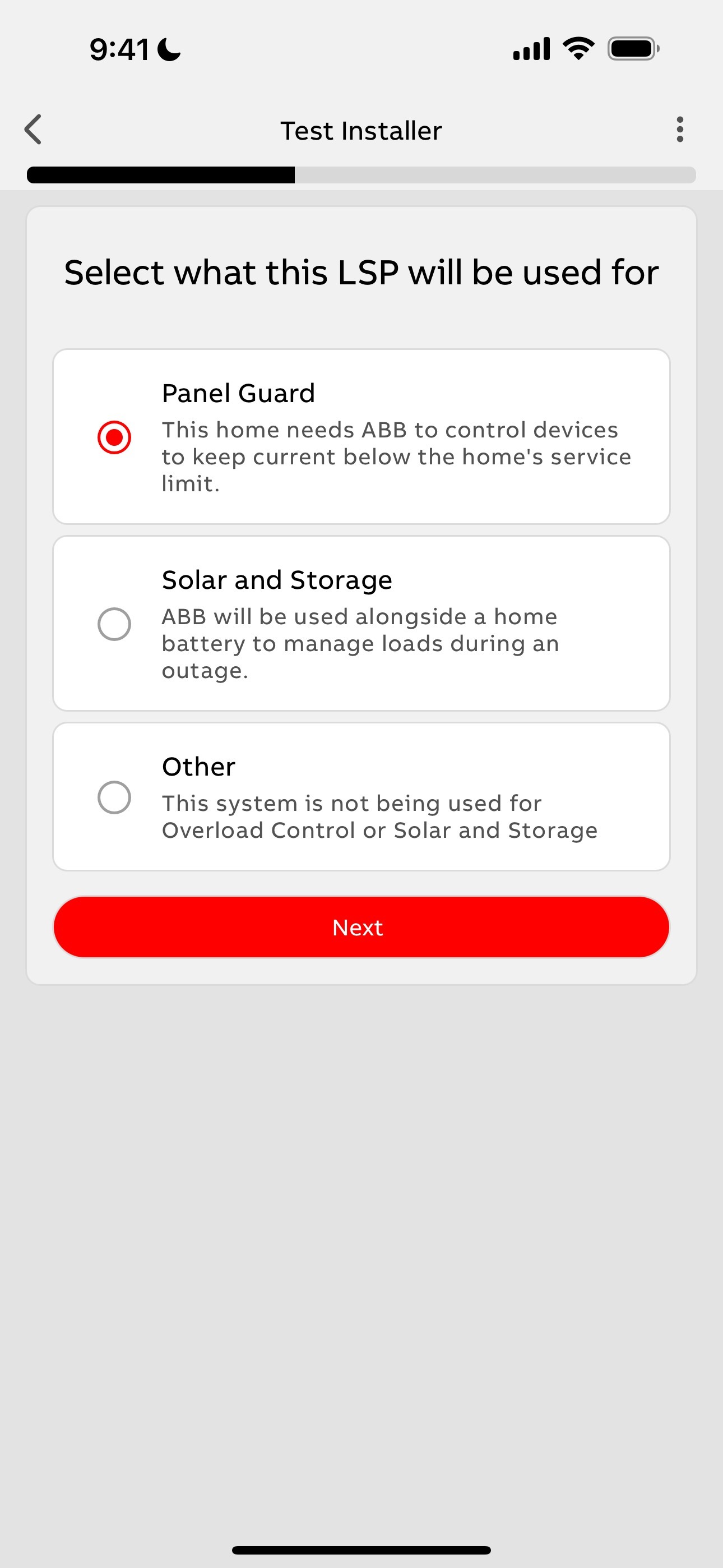
Note: You must choose "Panel Guard" when asked what the installation will be used for. It is not possible at this time to use a single smart panel to perform both Panel Guard and Off-Grid Manager (solar and storage) functions; you must choose one or the other.
|  |  |
| 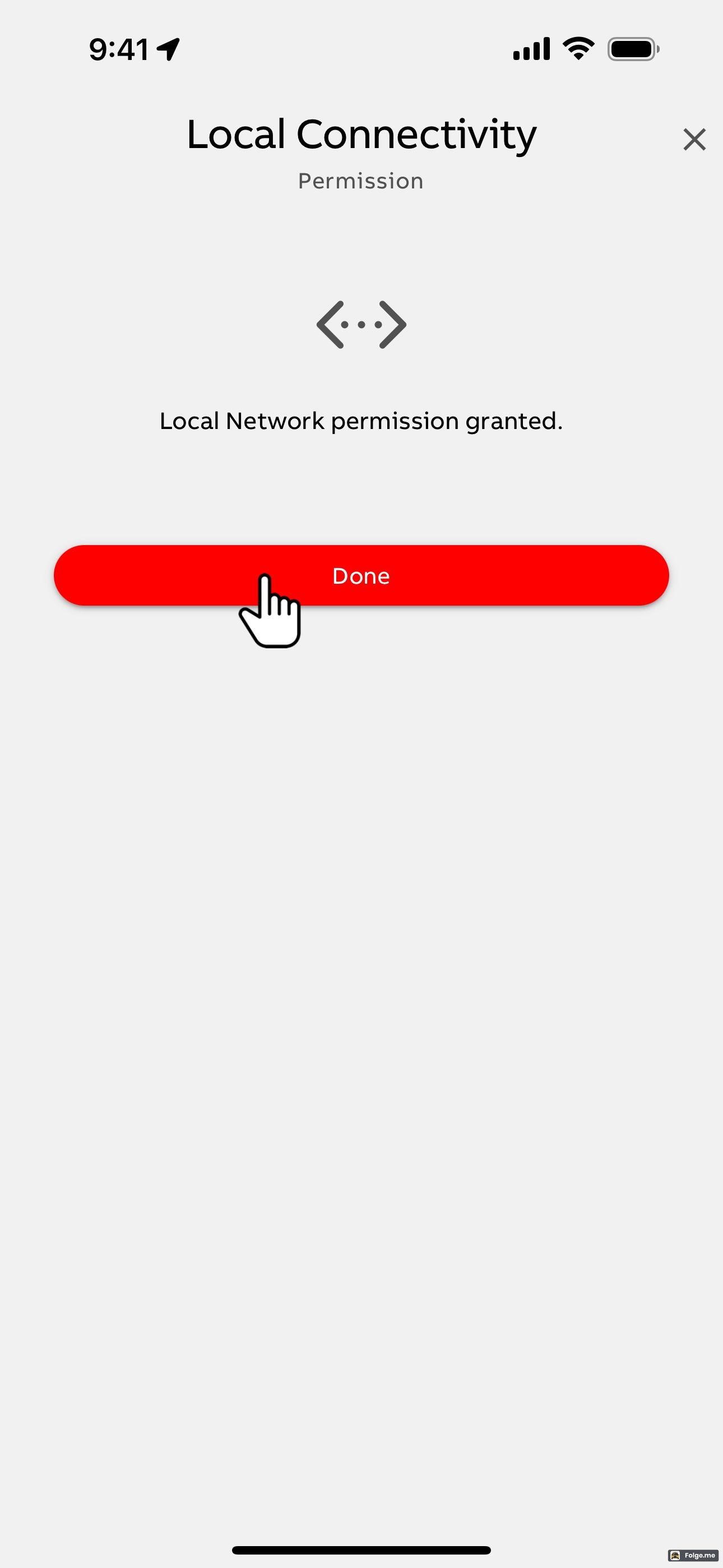 | 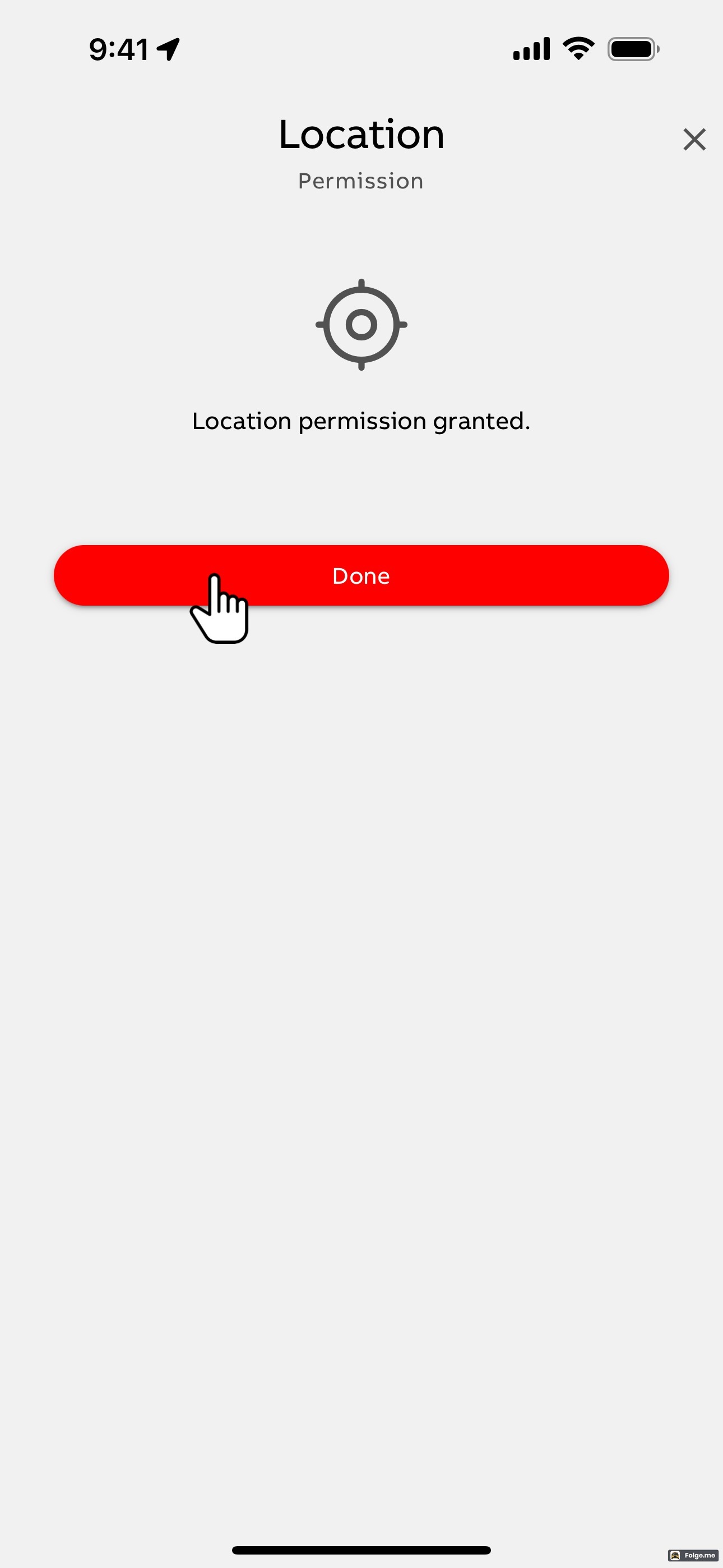 |
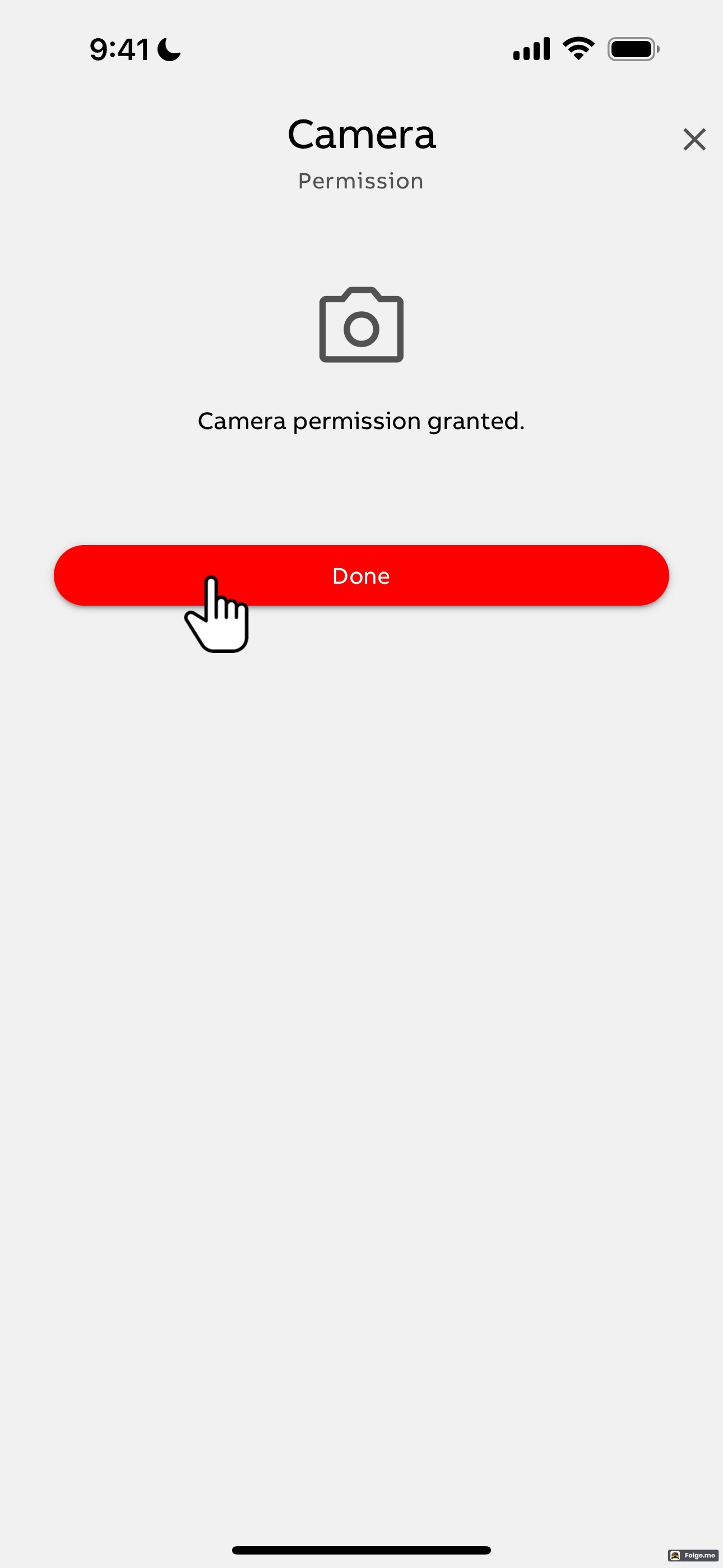 | 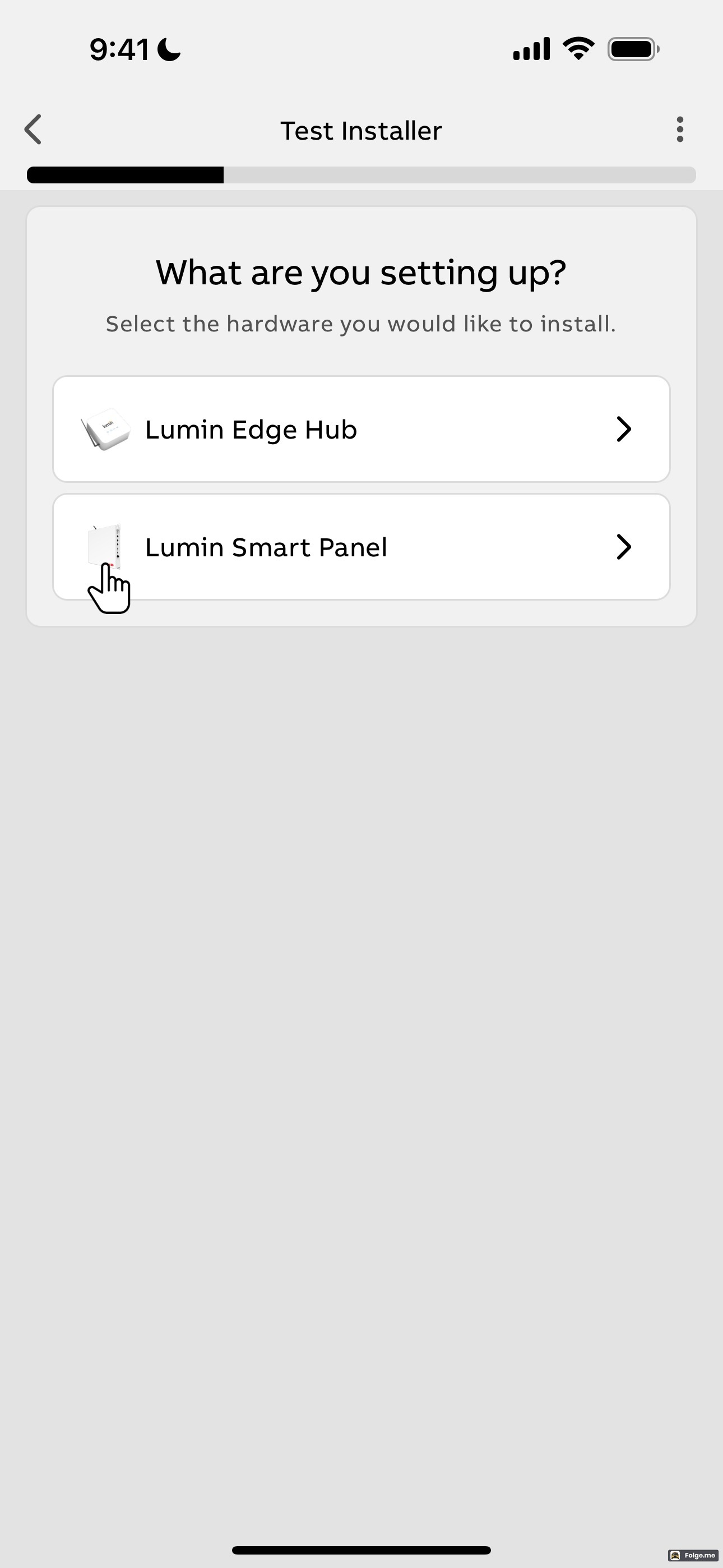 |  |
 |  |  |
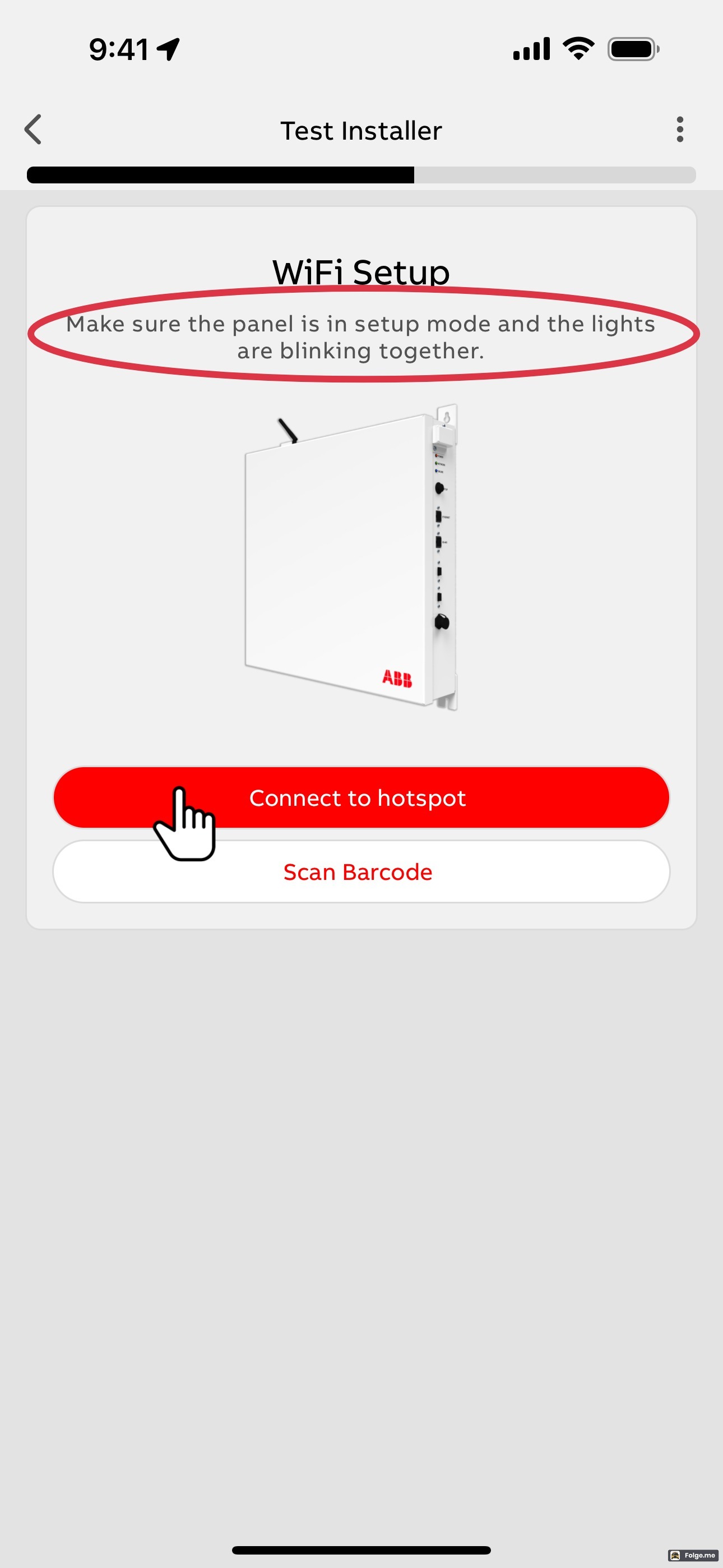
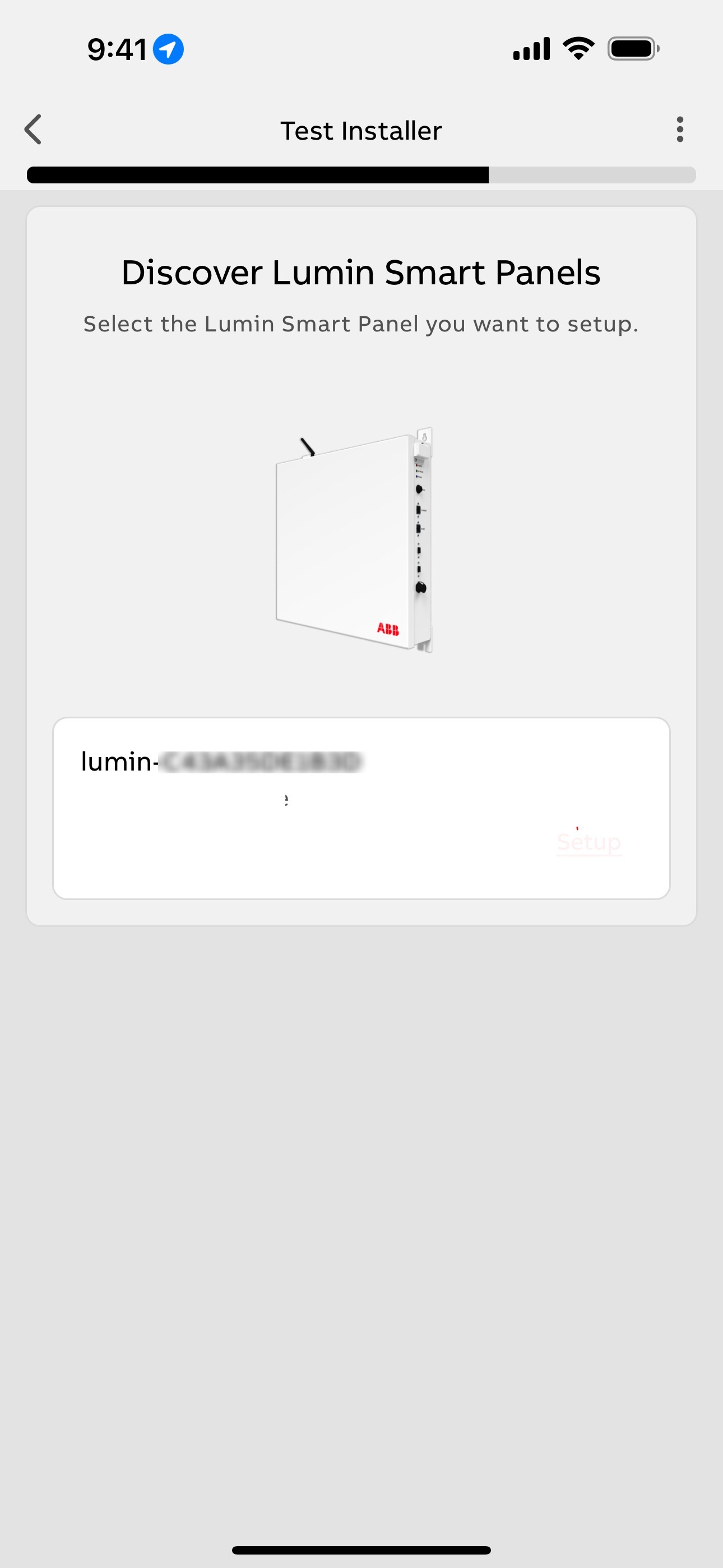
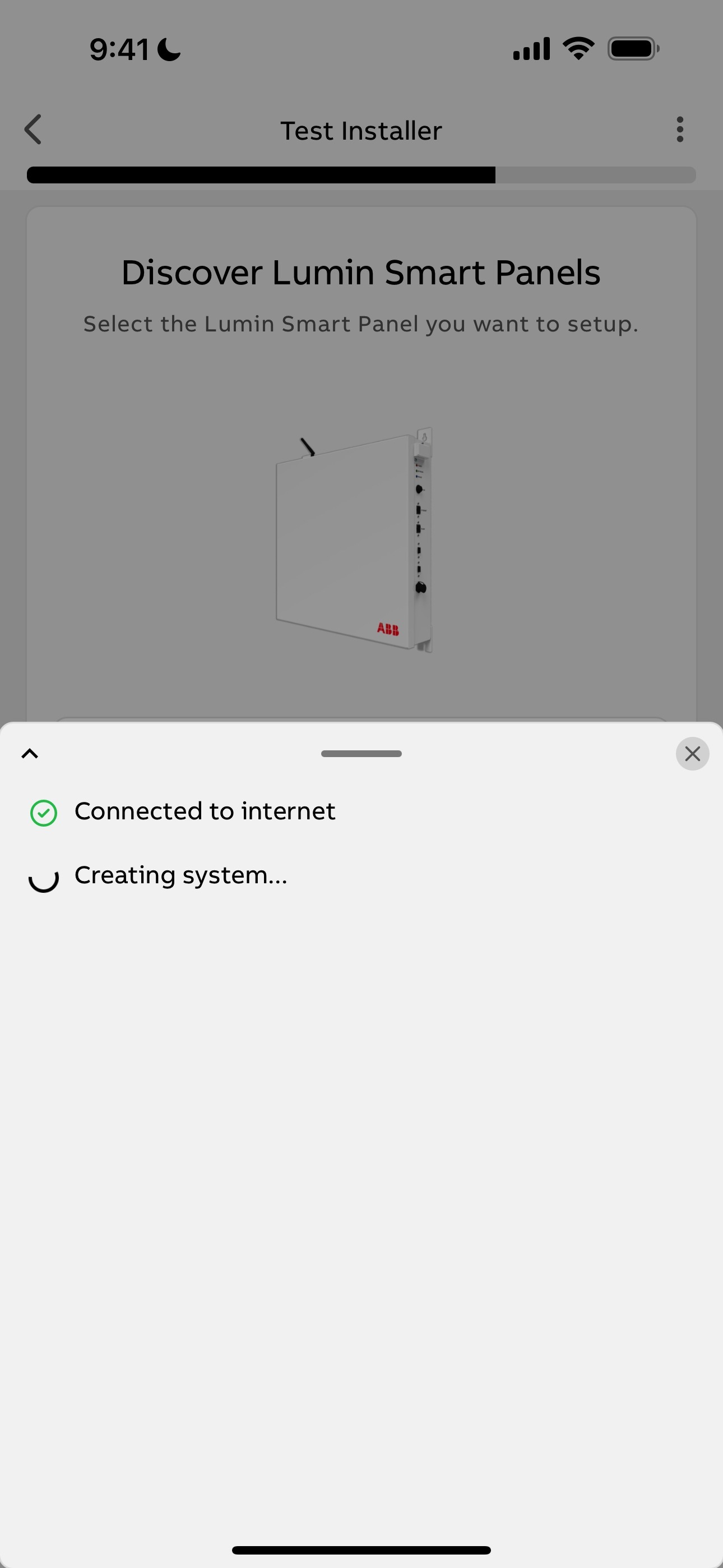
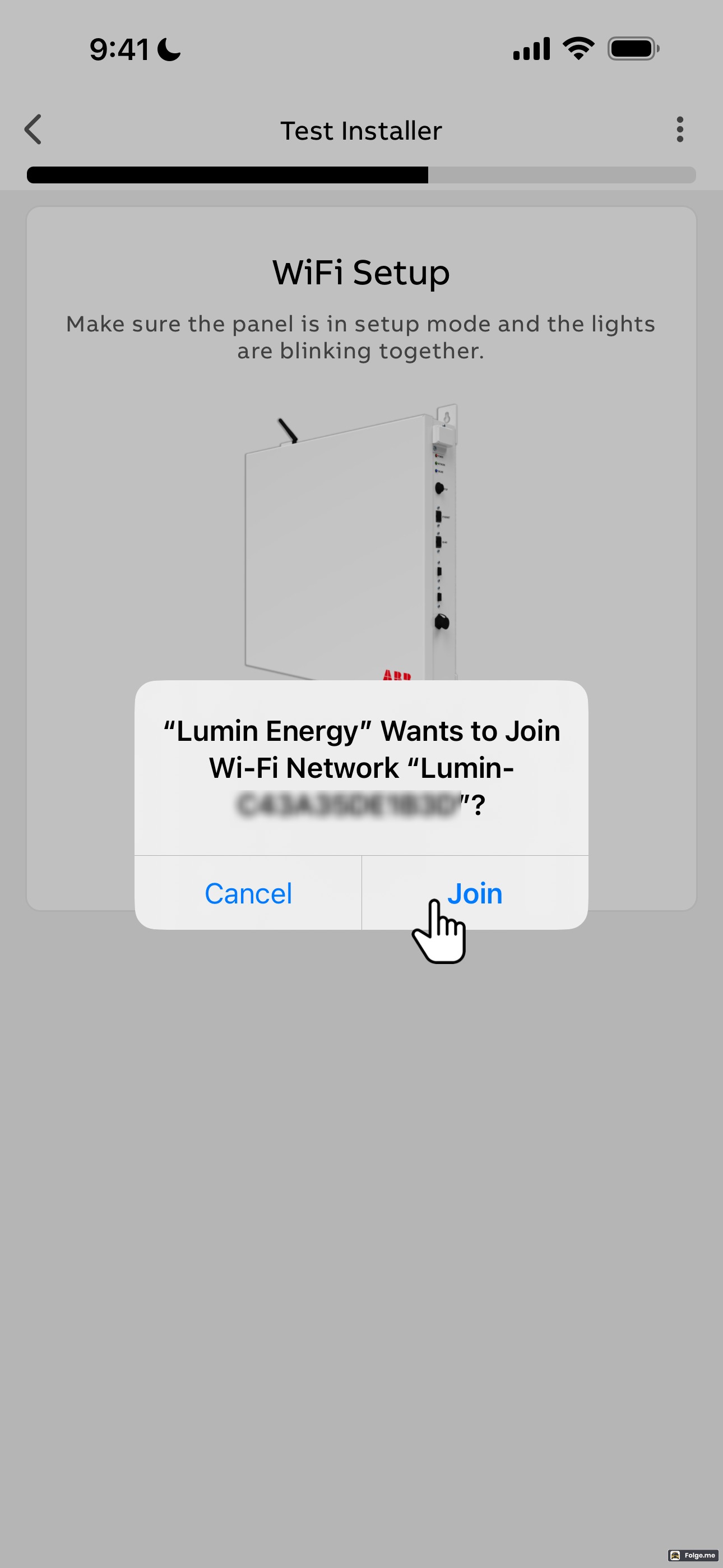
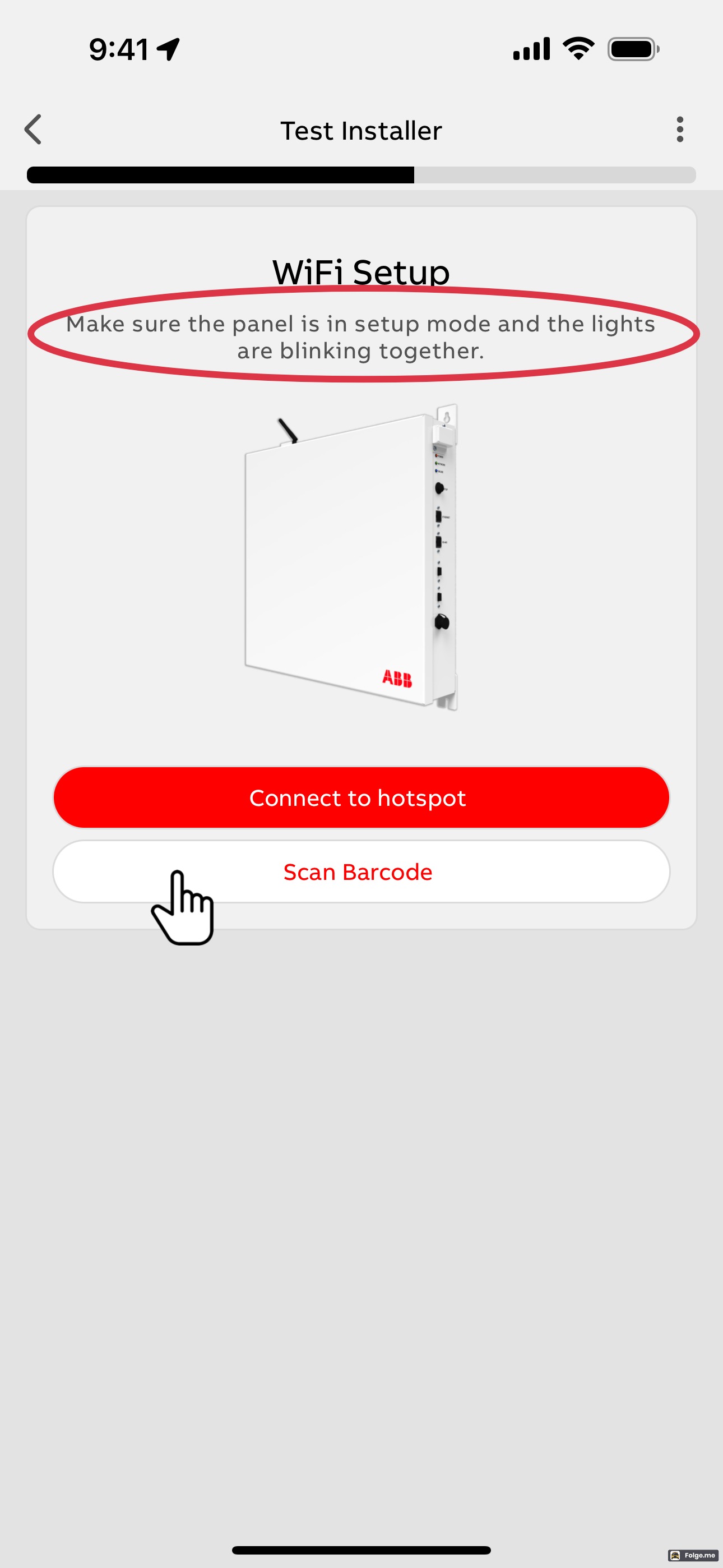
| WiFi Setup Method #1: Connect to Hotspot | Note: Wait at least ten seconds after green and blue lights begin blinking simultaneously before attempting to connect to hotspot. | |
 |  |  |
 | ||
| WiFi Setup Method #2: Scan Barcode | ||
 | ||
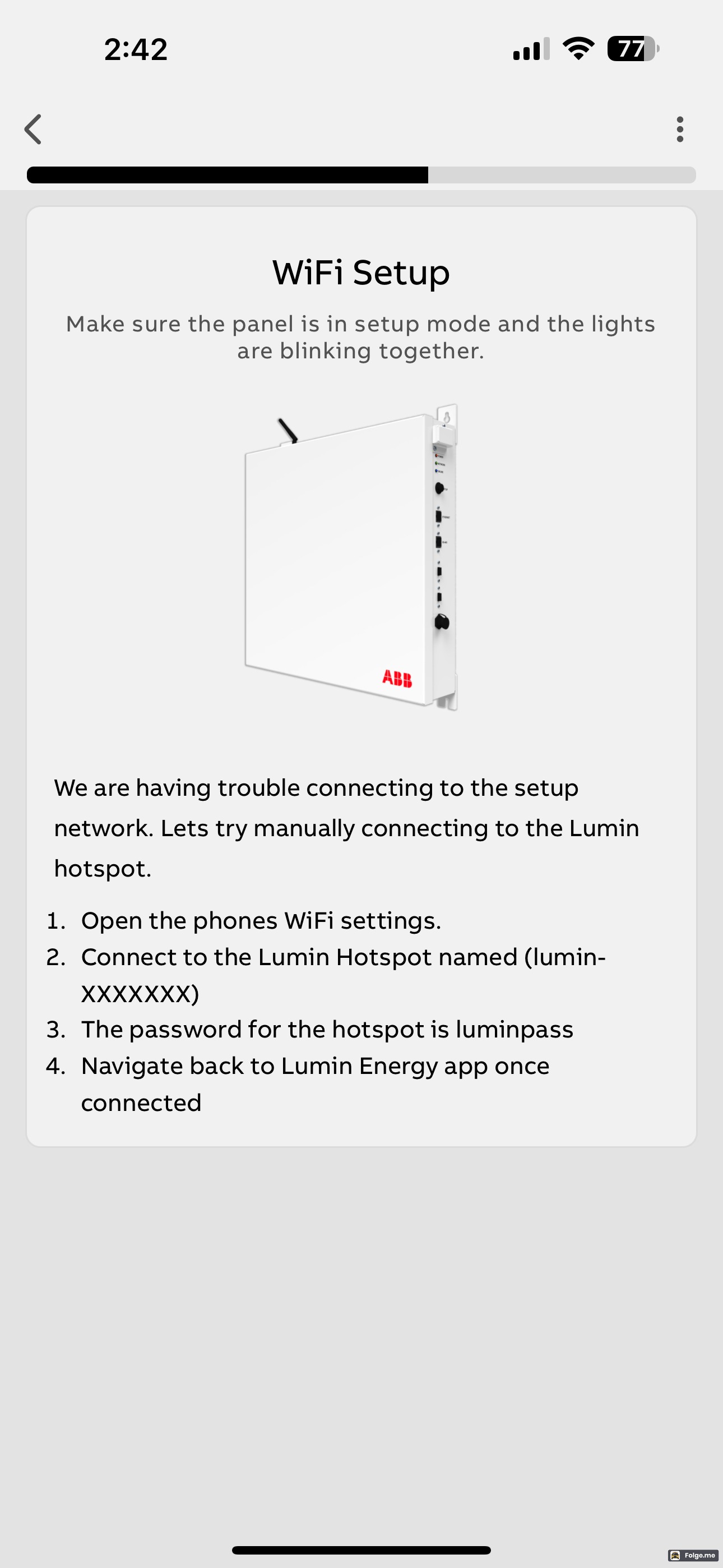
| WiFi Setup Method #3: Manually connect to Smart Panel Hotspot | (Use this method when Methods 1 and 2 are unsuccessful.) | |
 | ||
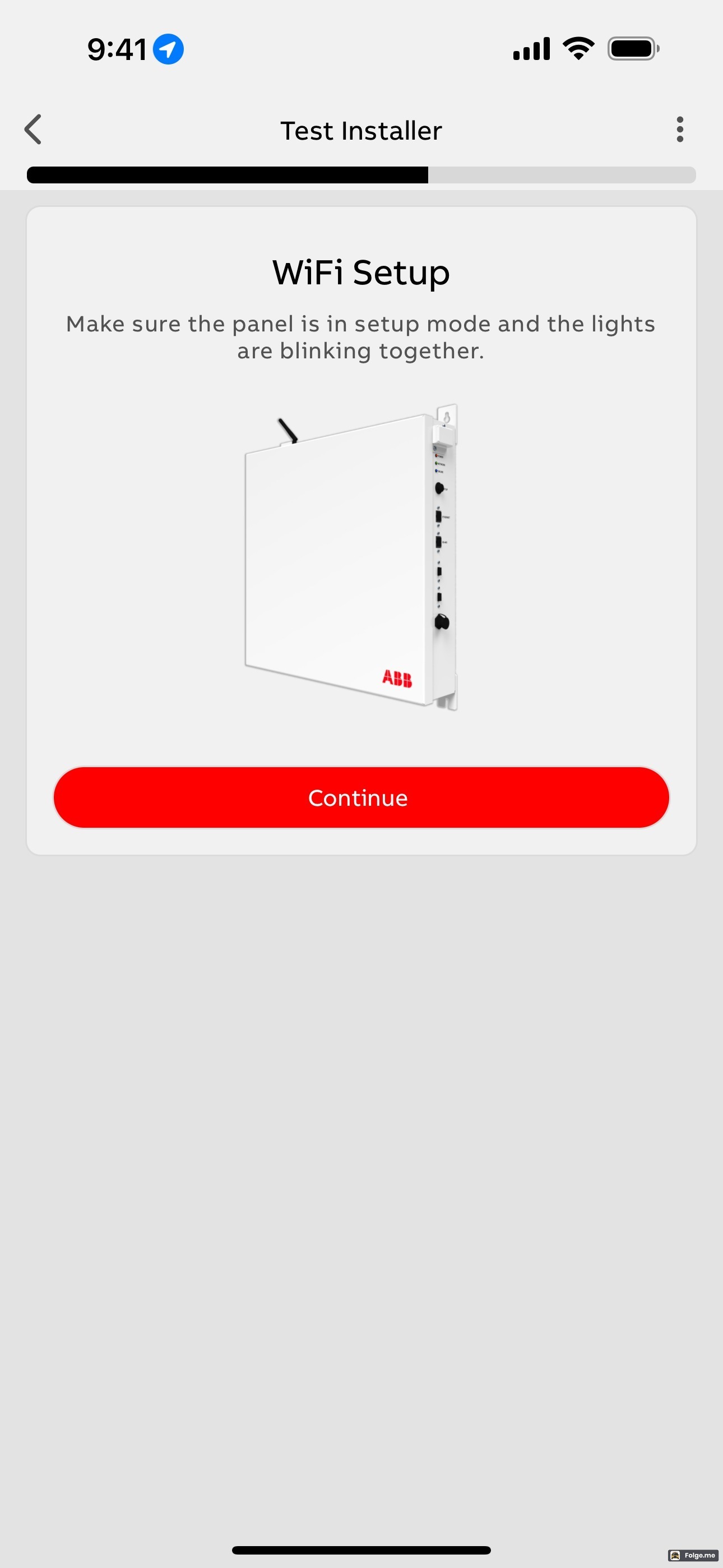
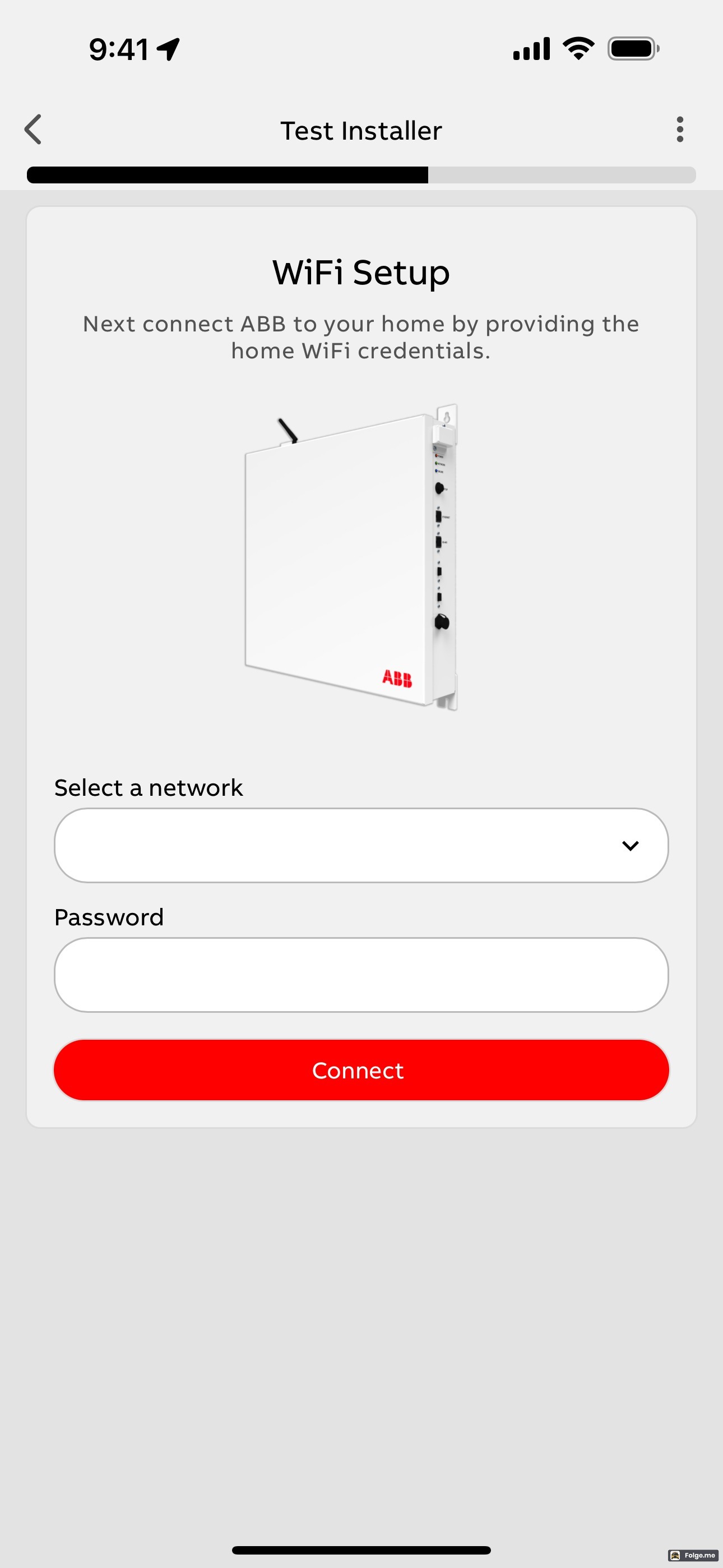
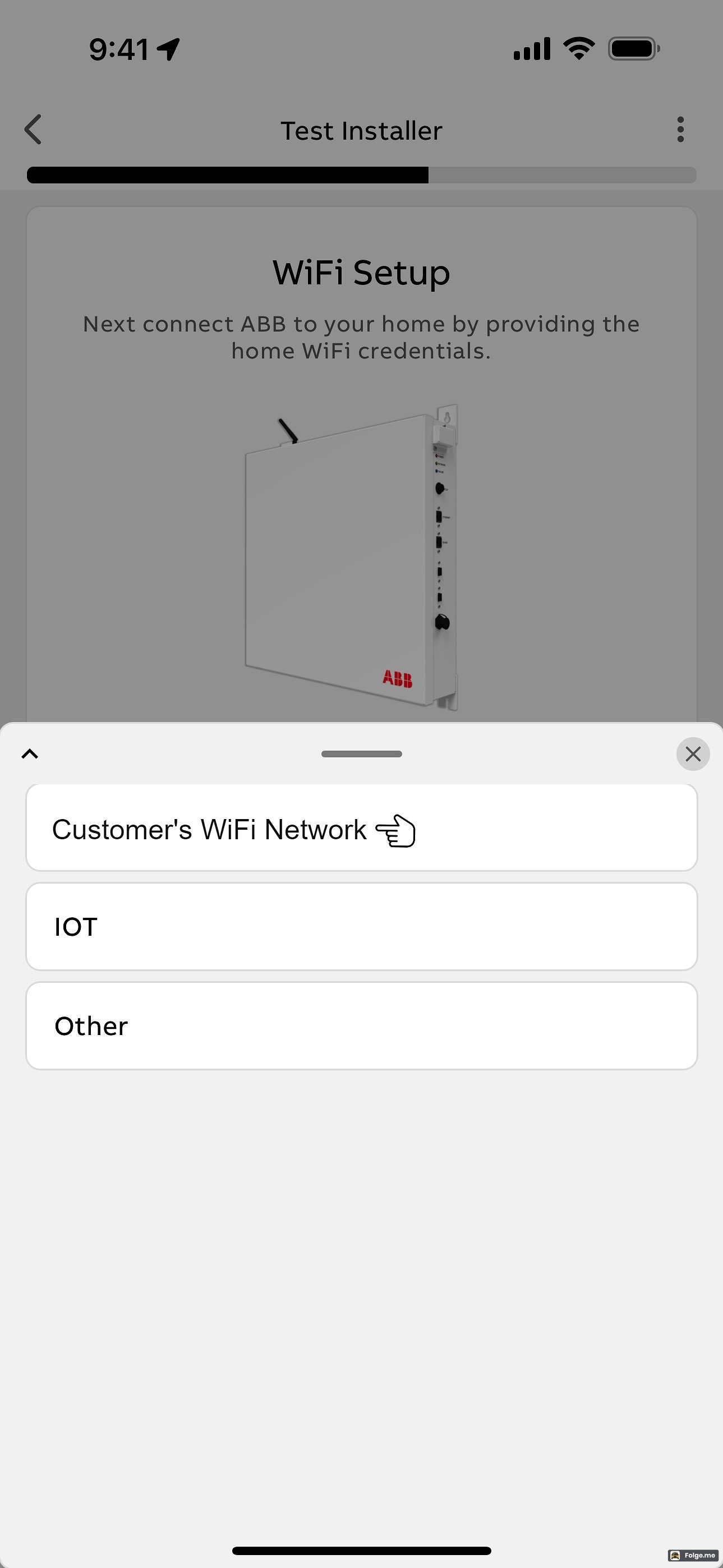
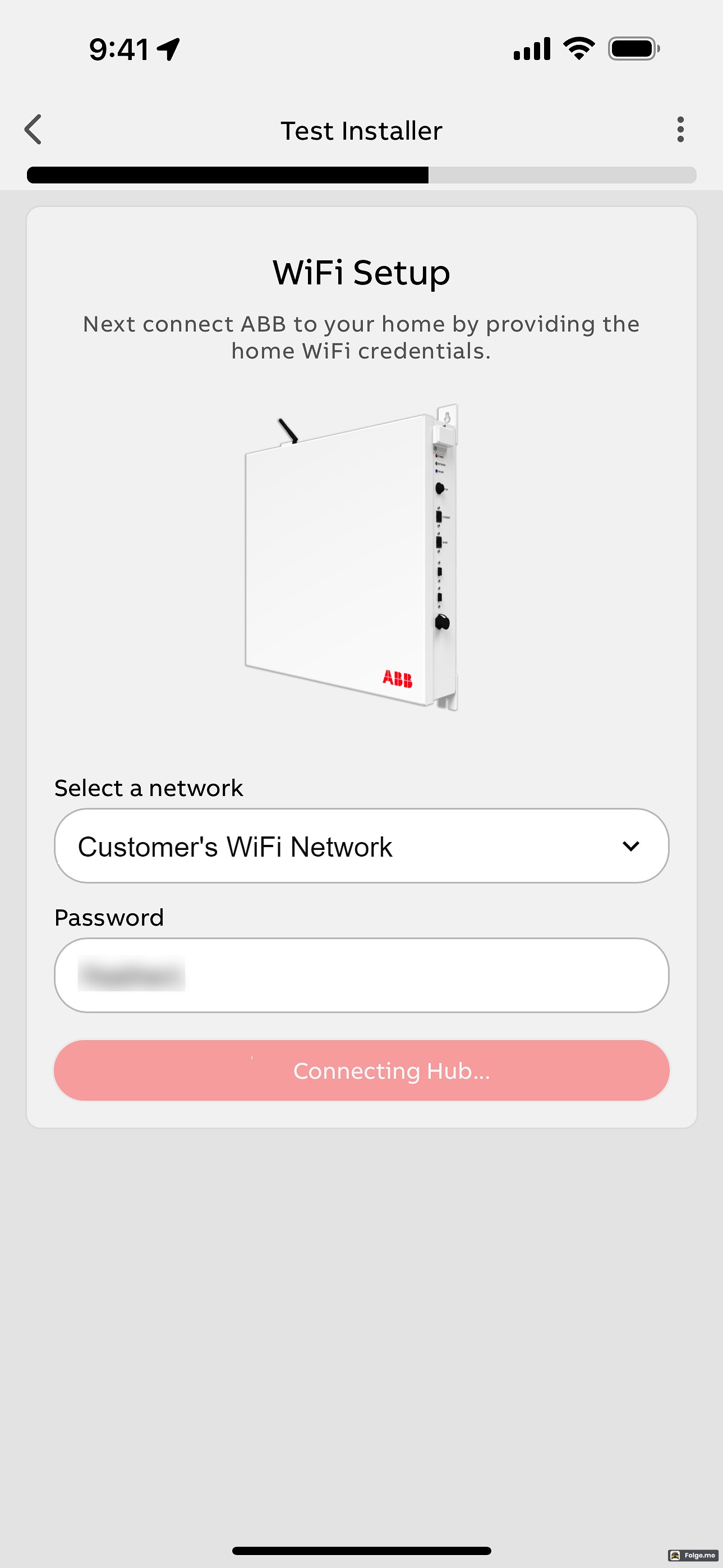
| All setup methods bring the user to the screen below: | ||
 |  |  |
 |  |  |
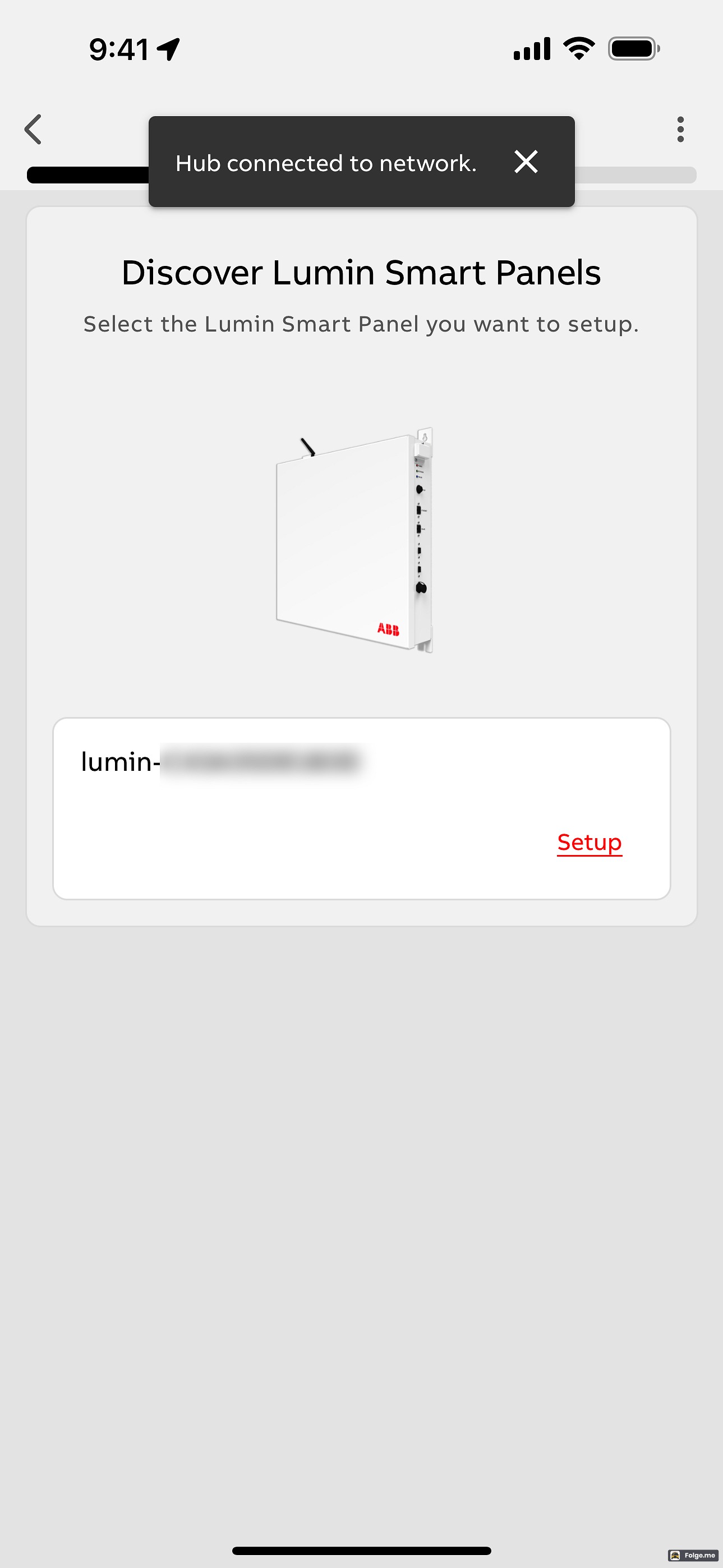 | 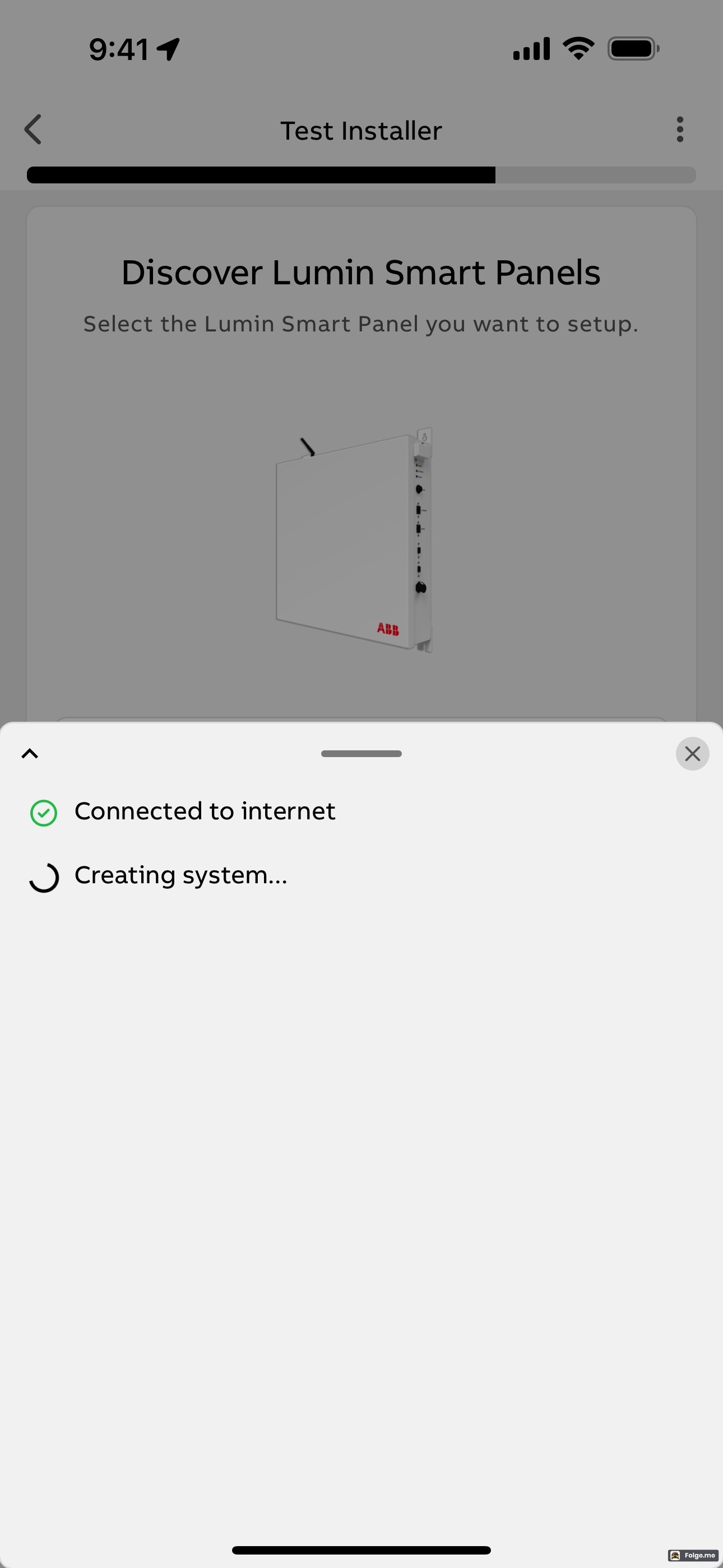 | 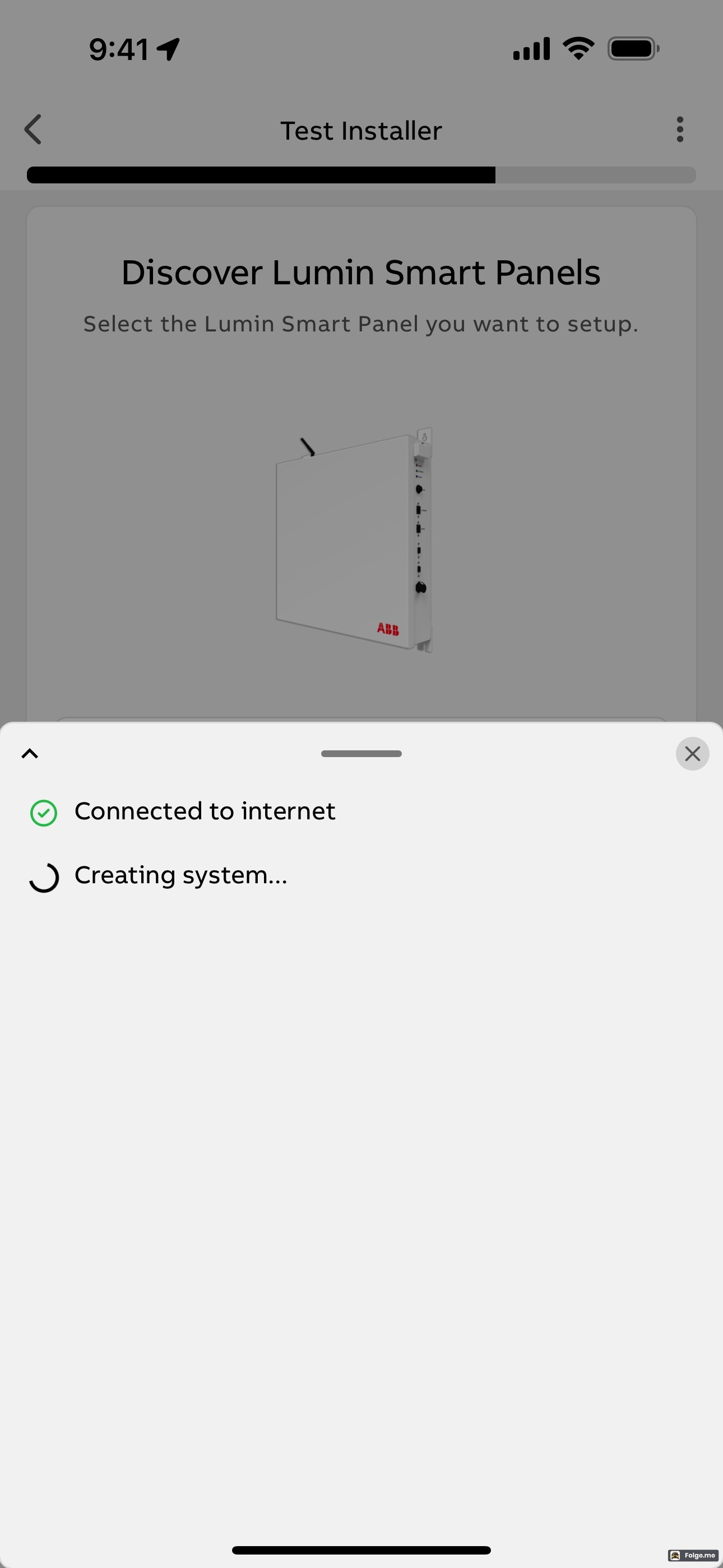 |
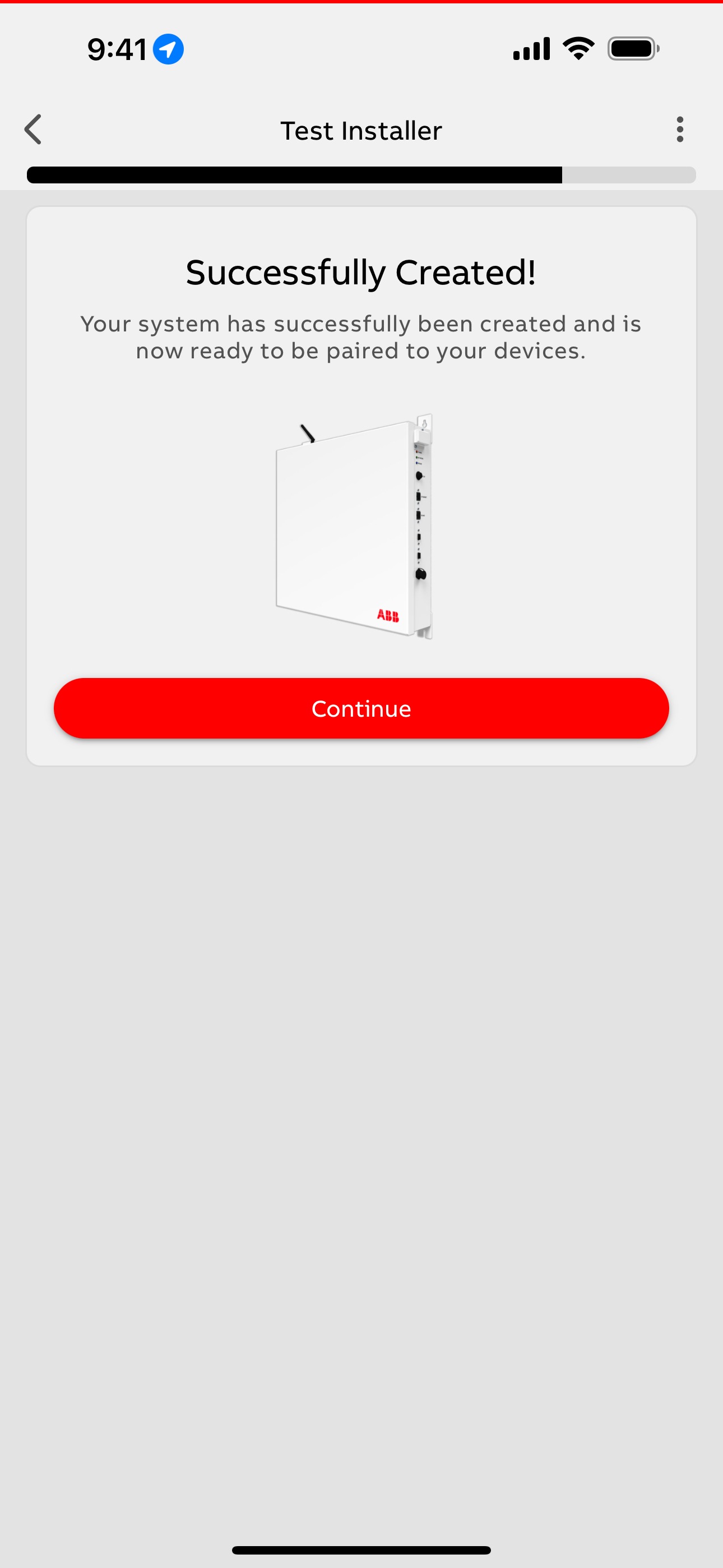 | 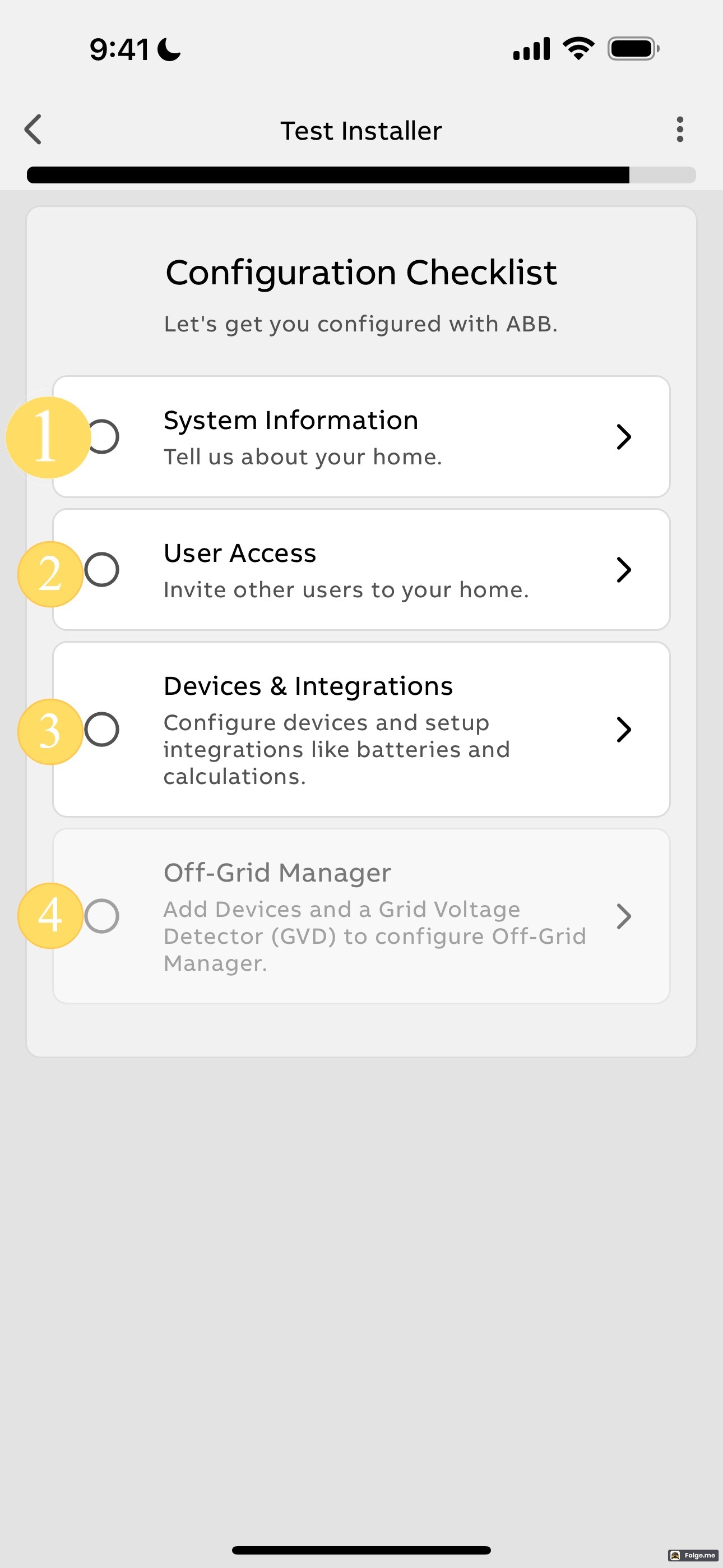 | 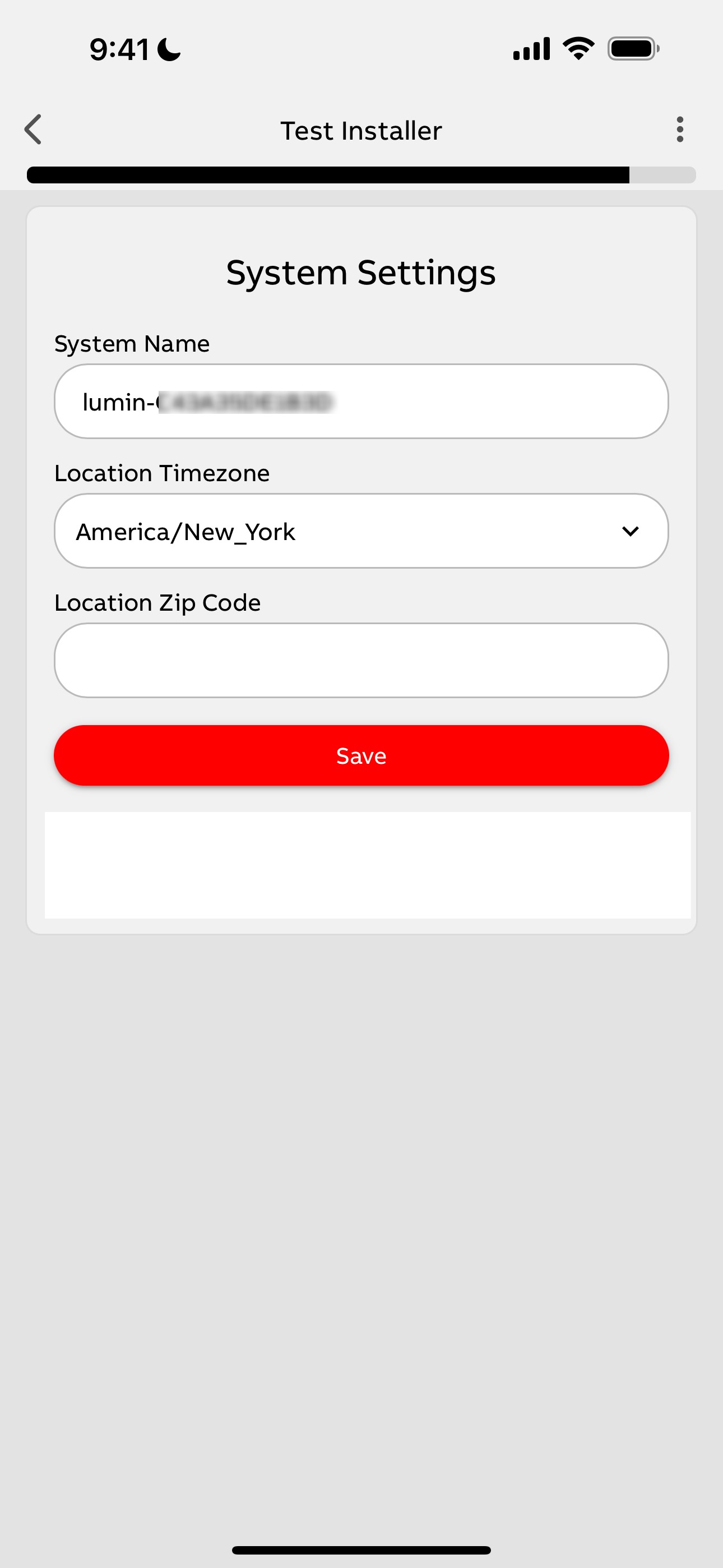 |
 | 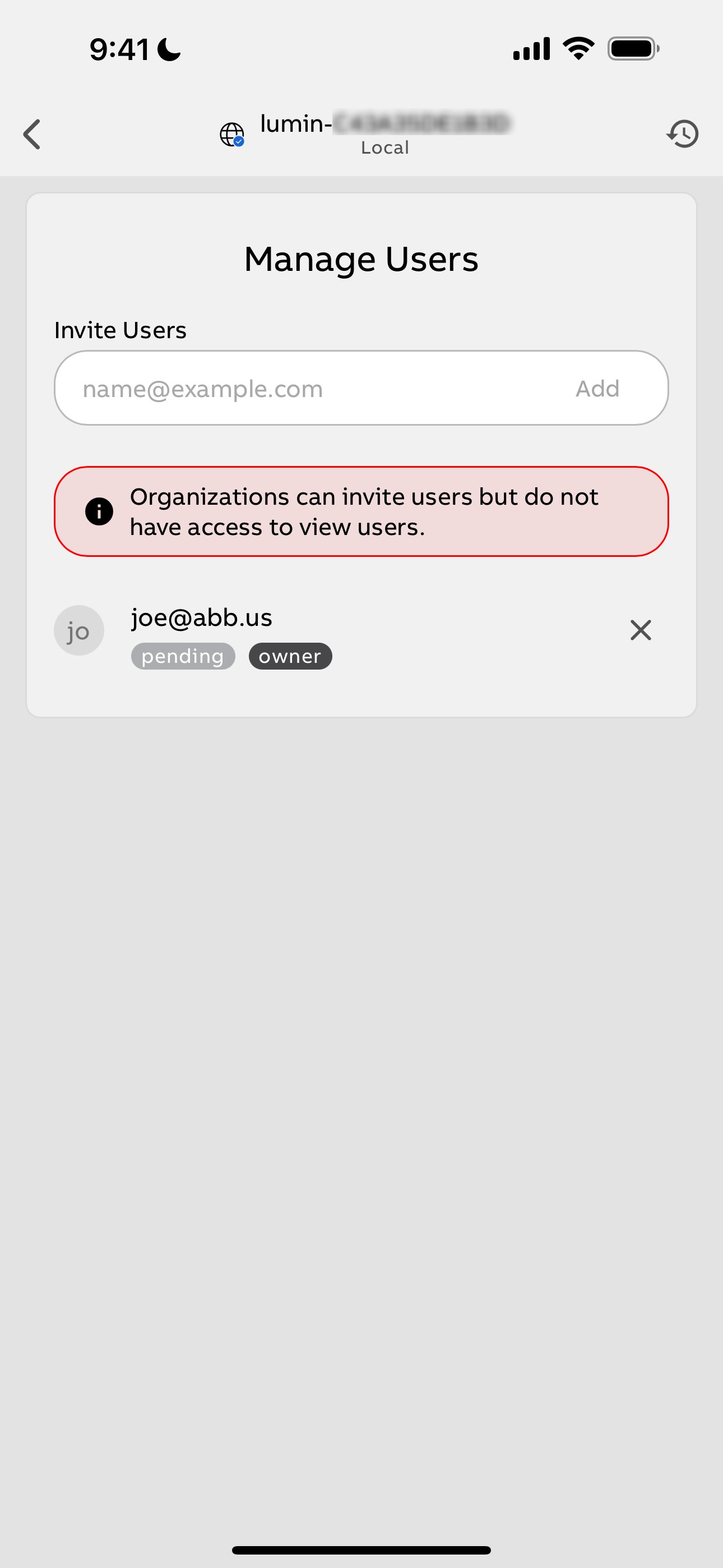 | 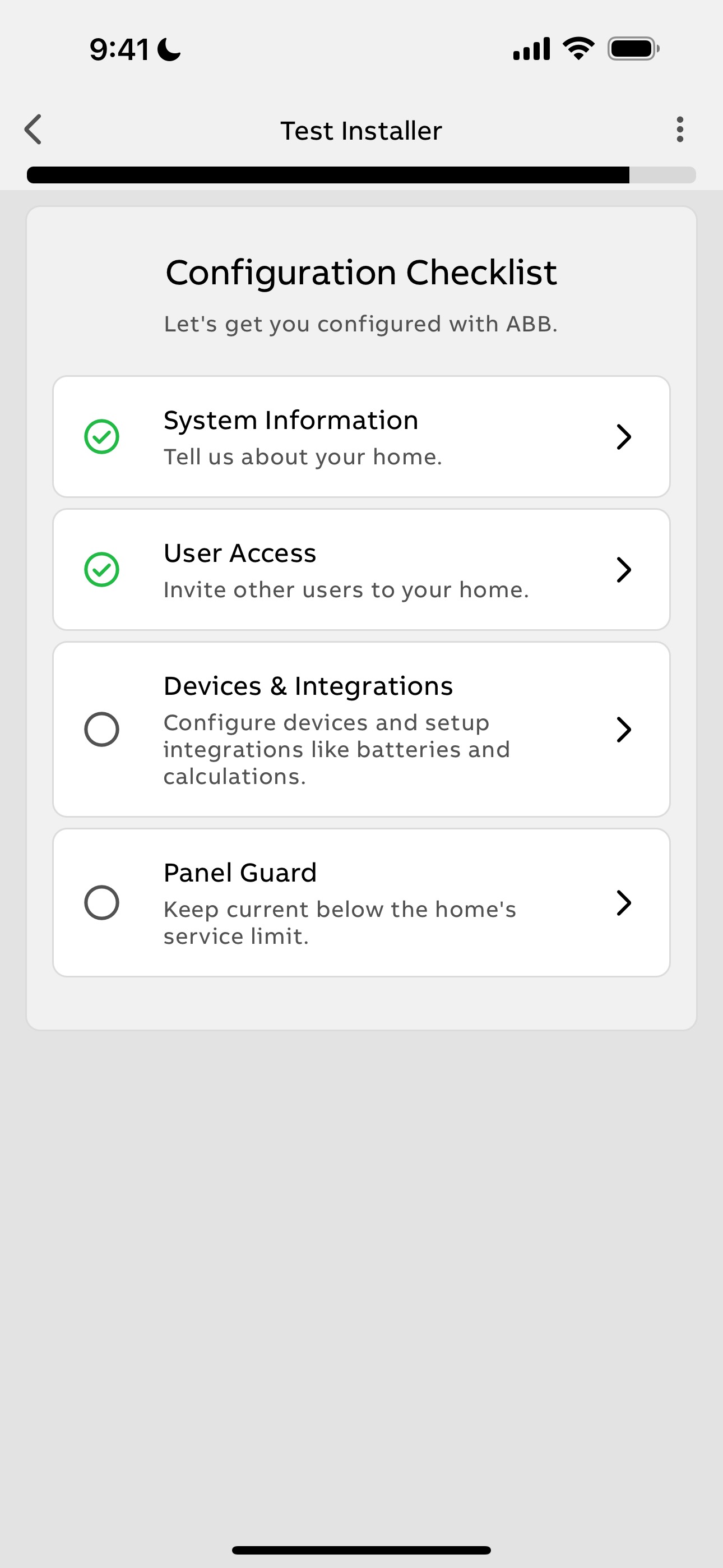 |
 | 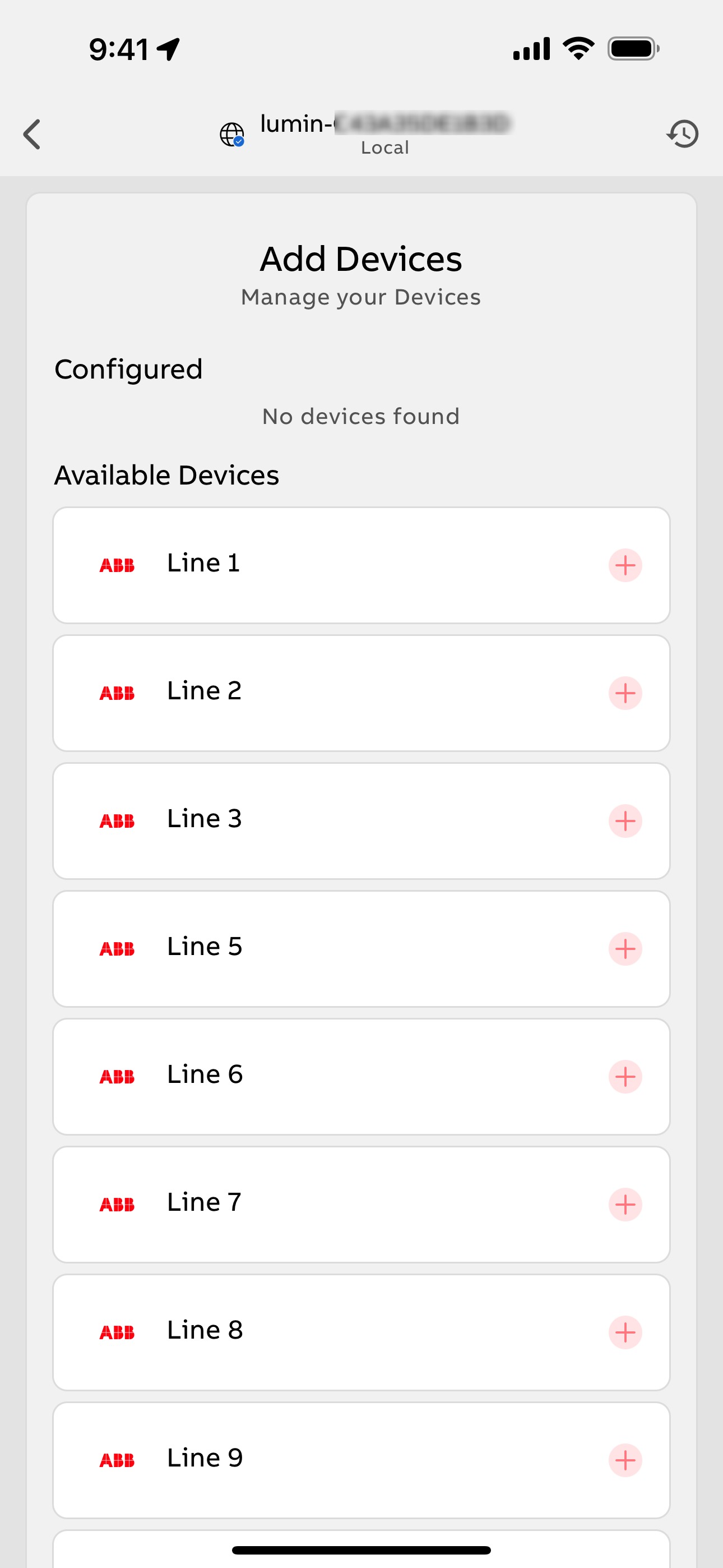 | 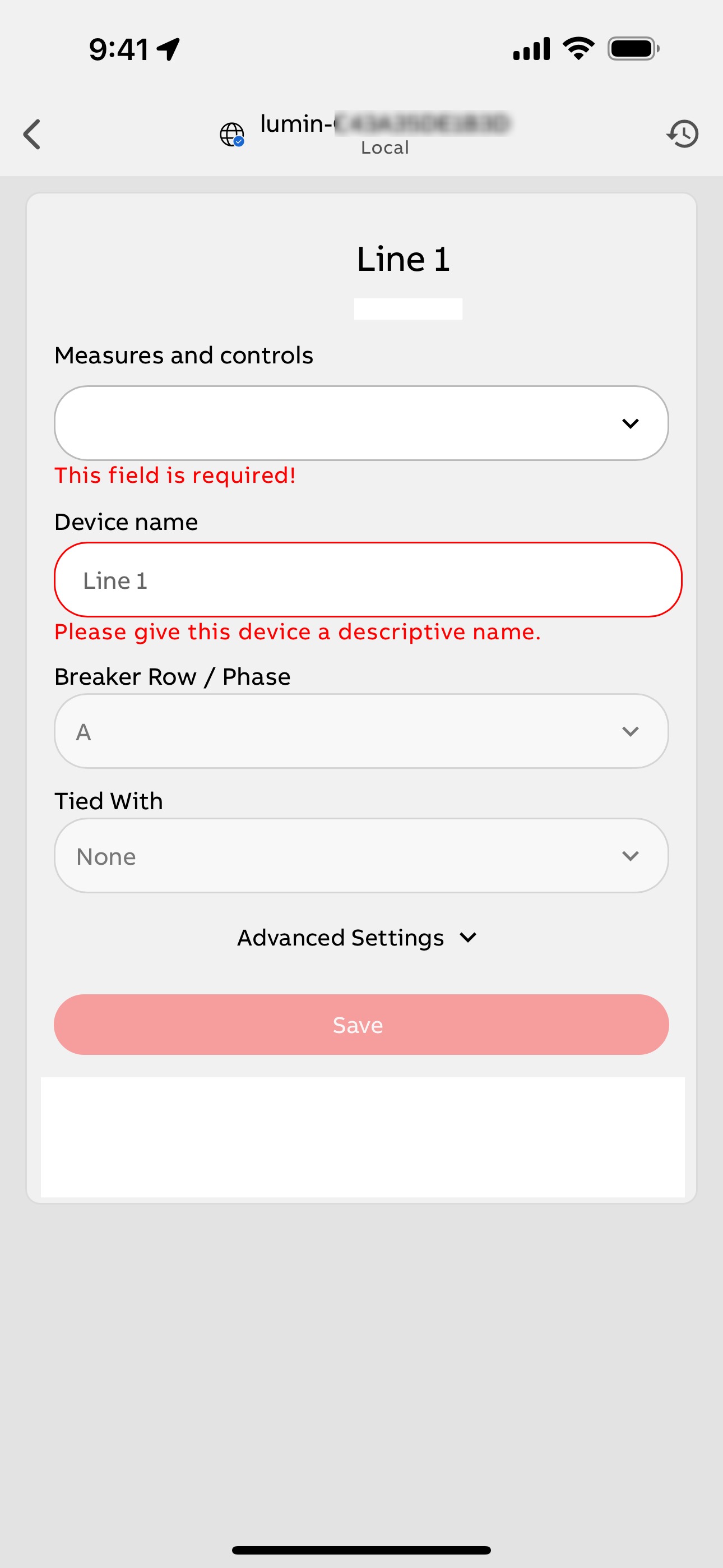 |
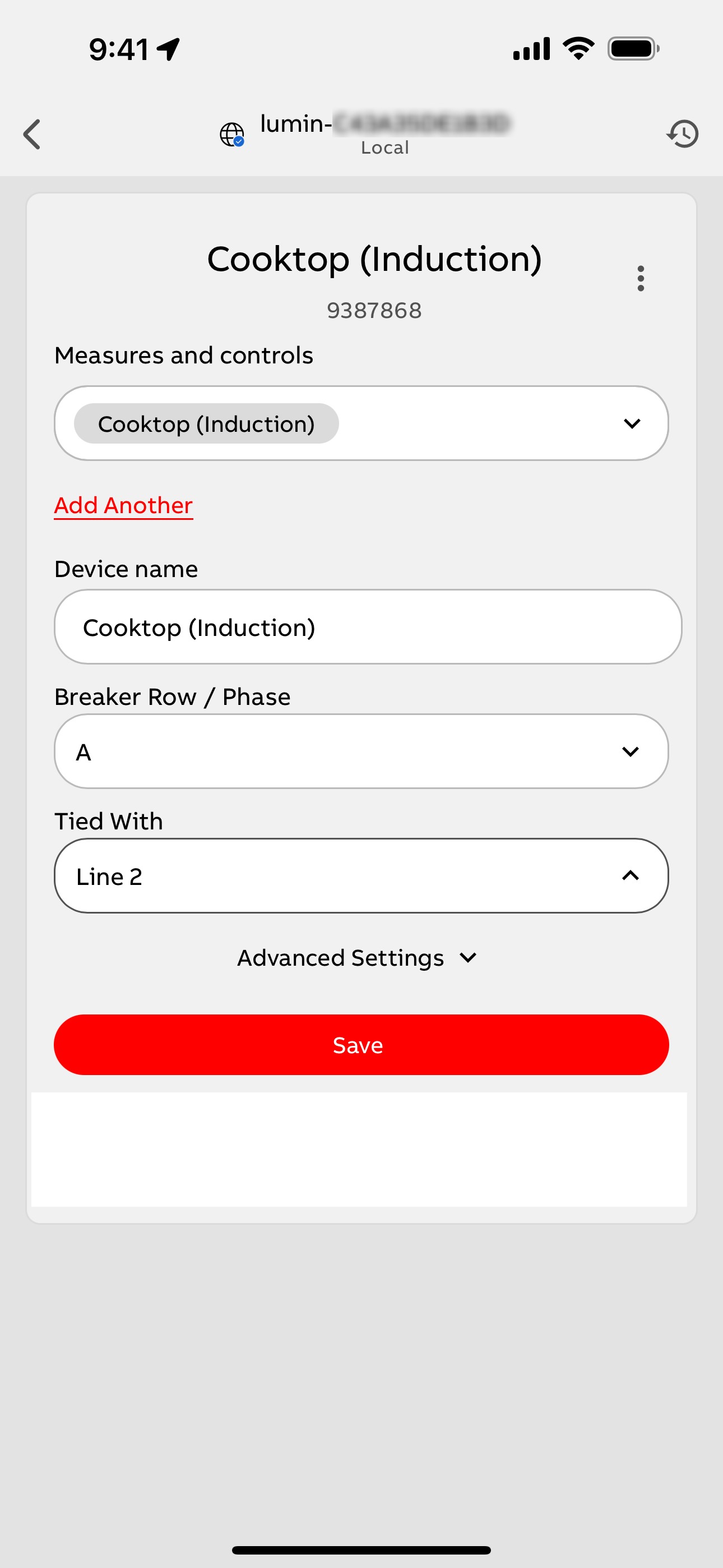 | 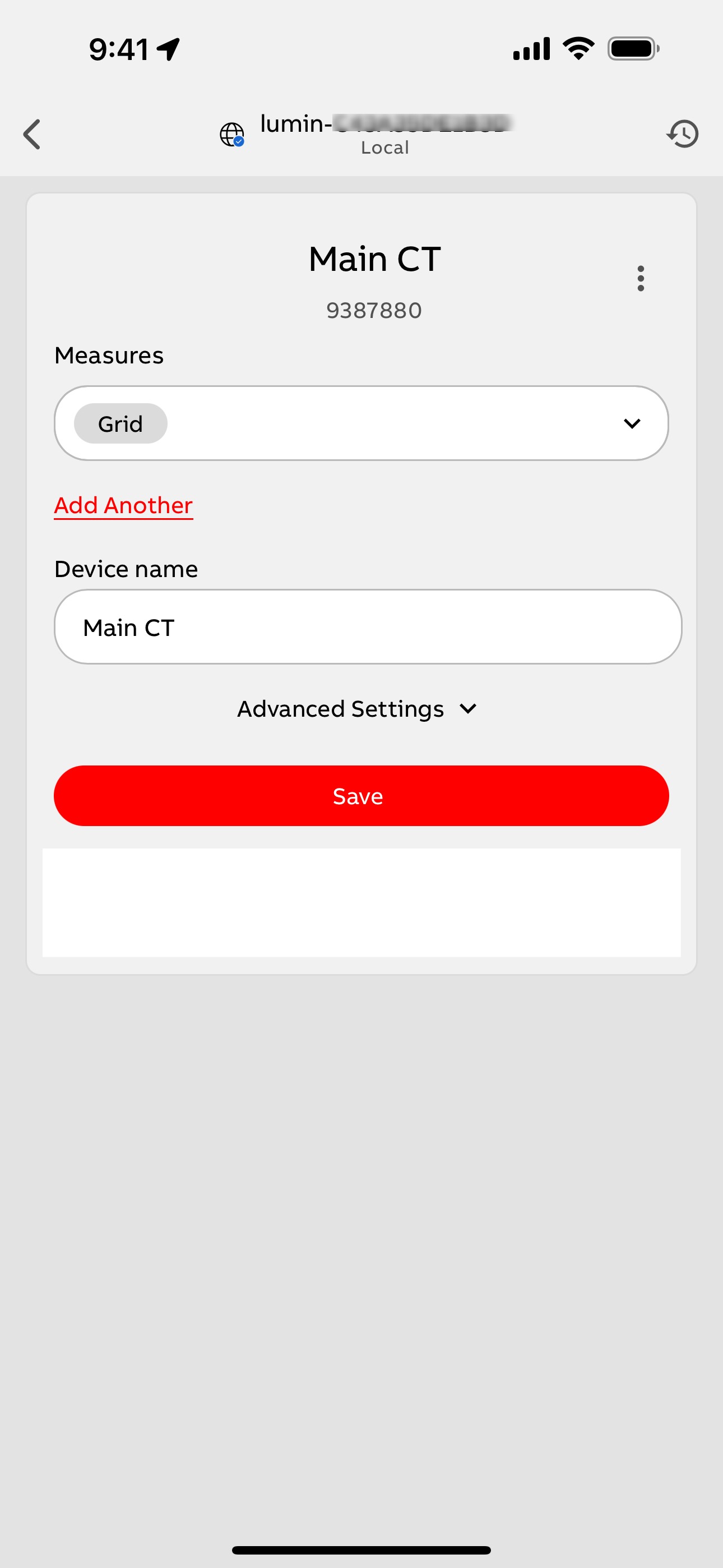 | 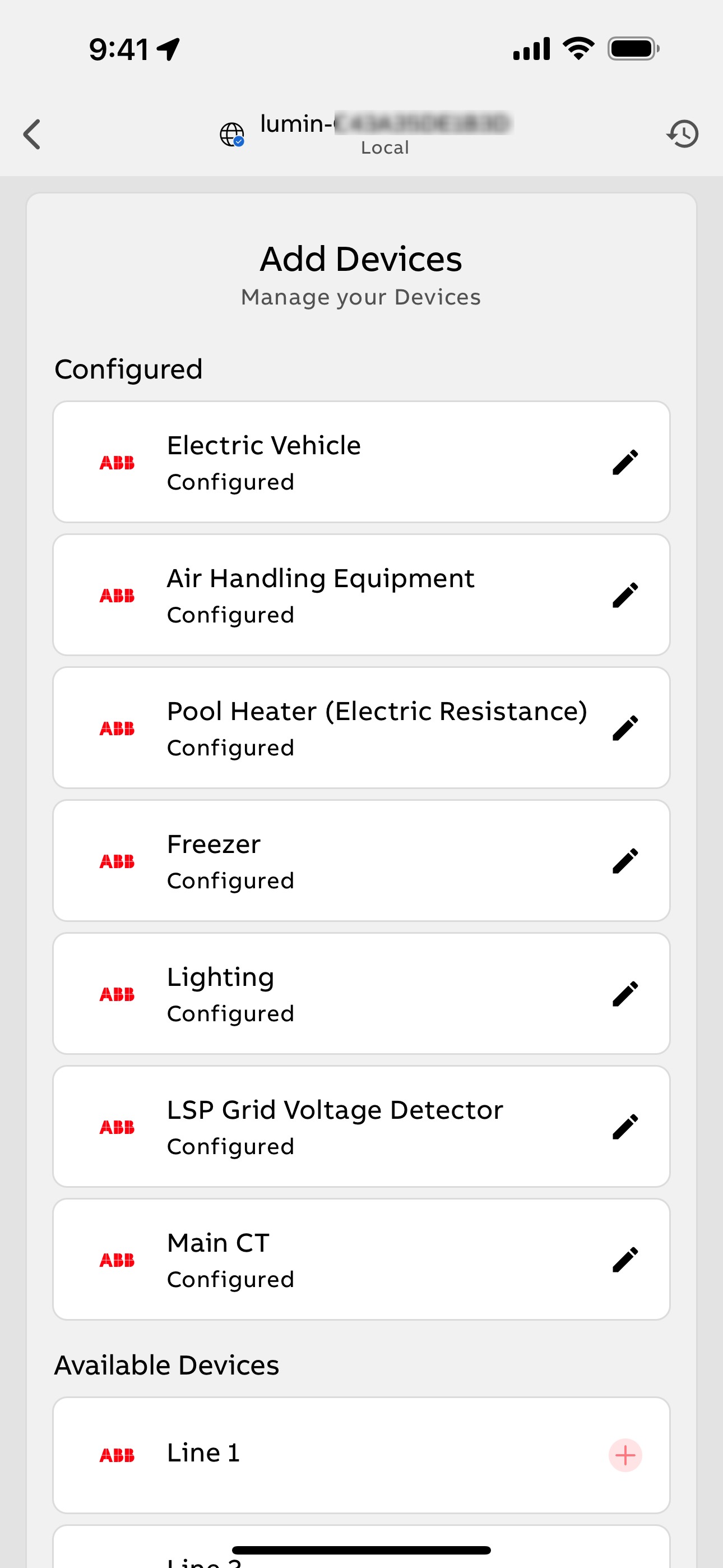 |
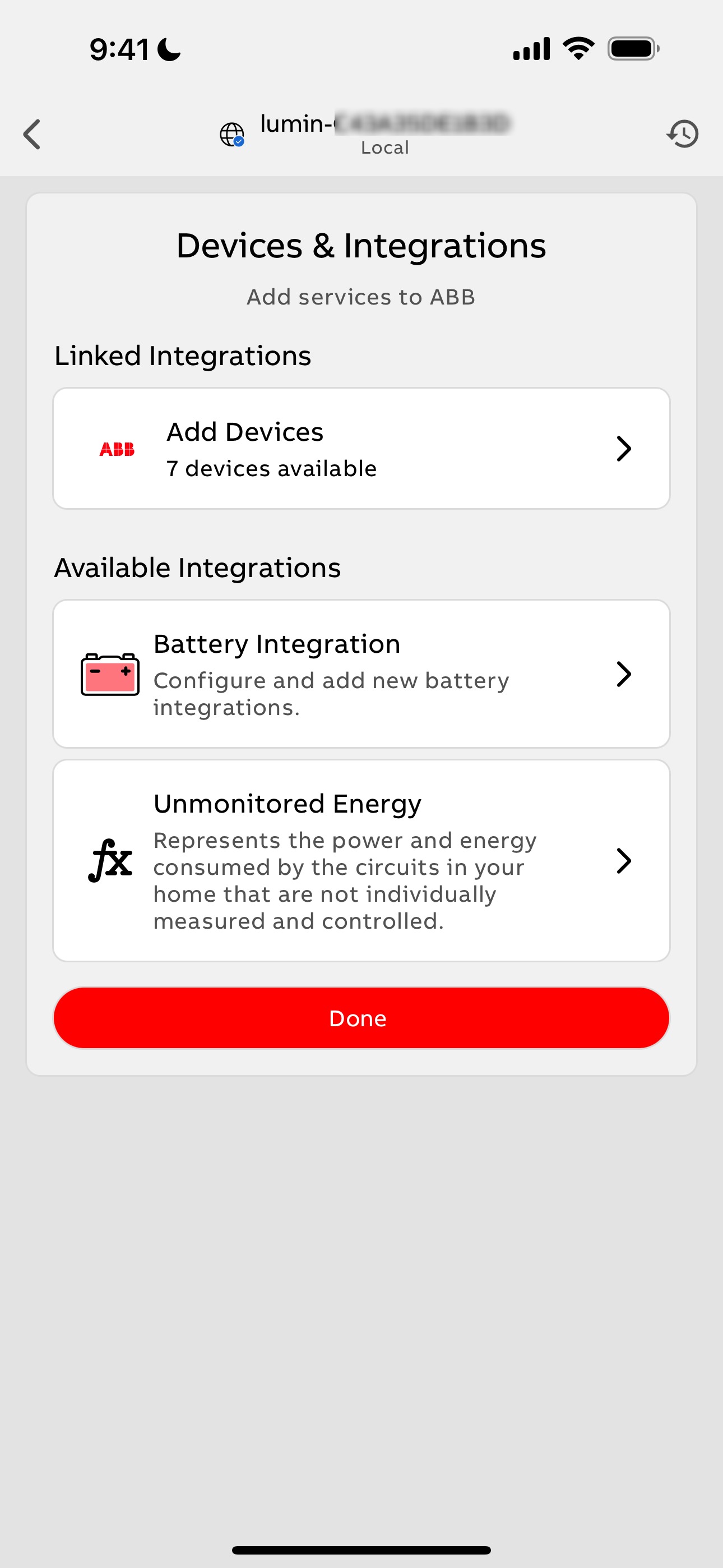 | 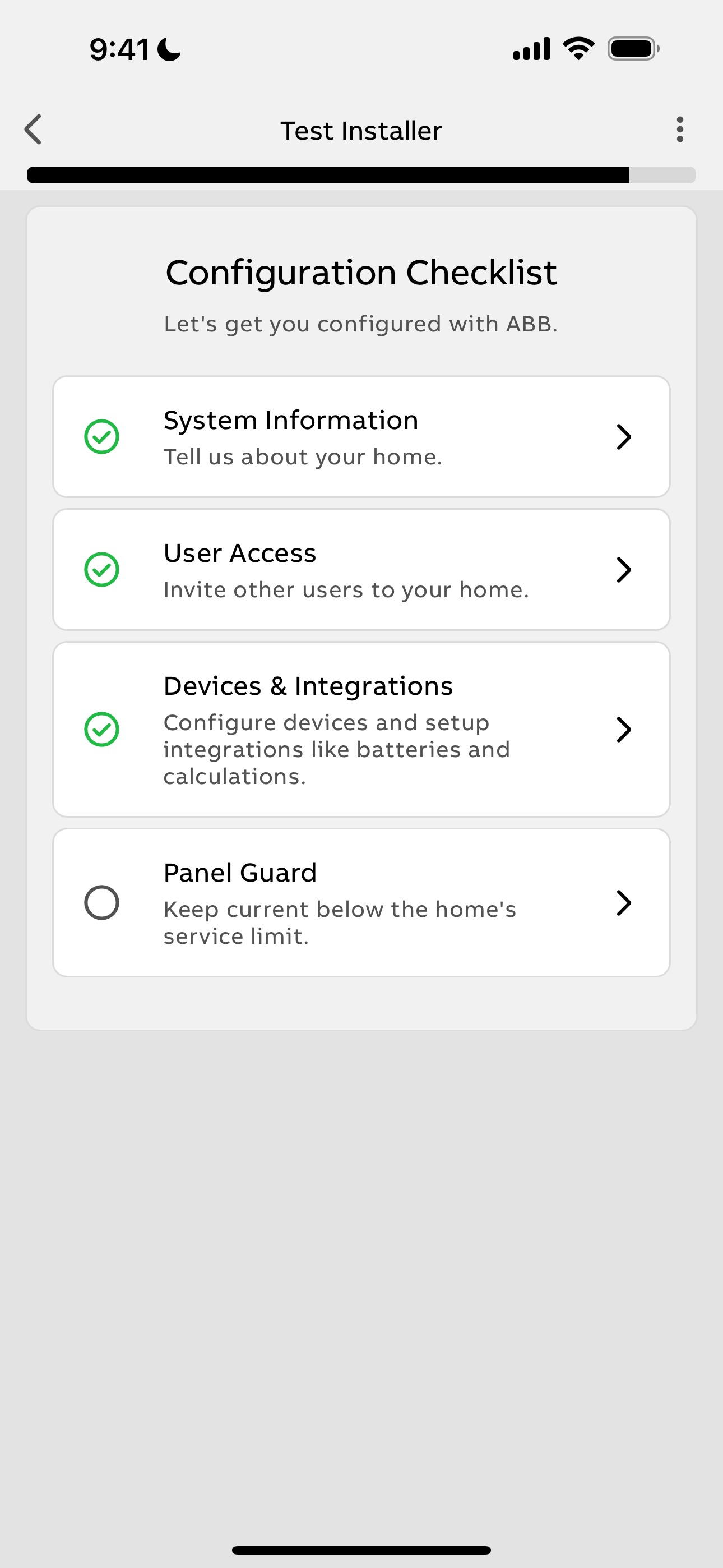 | 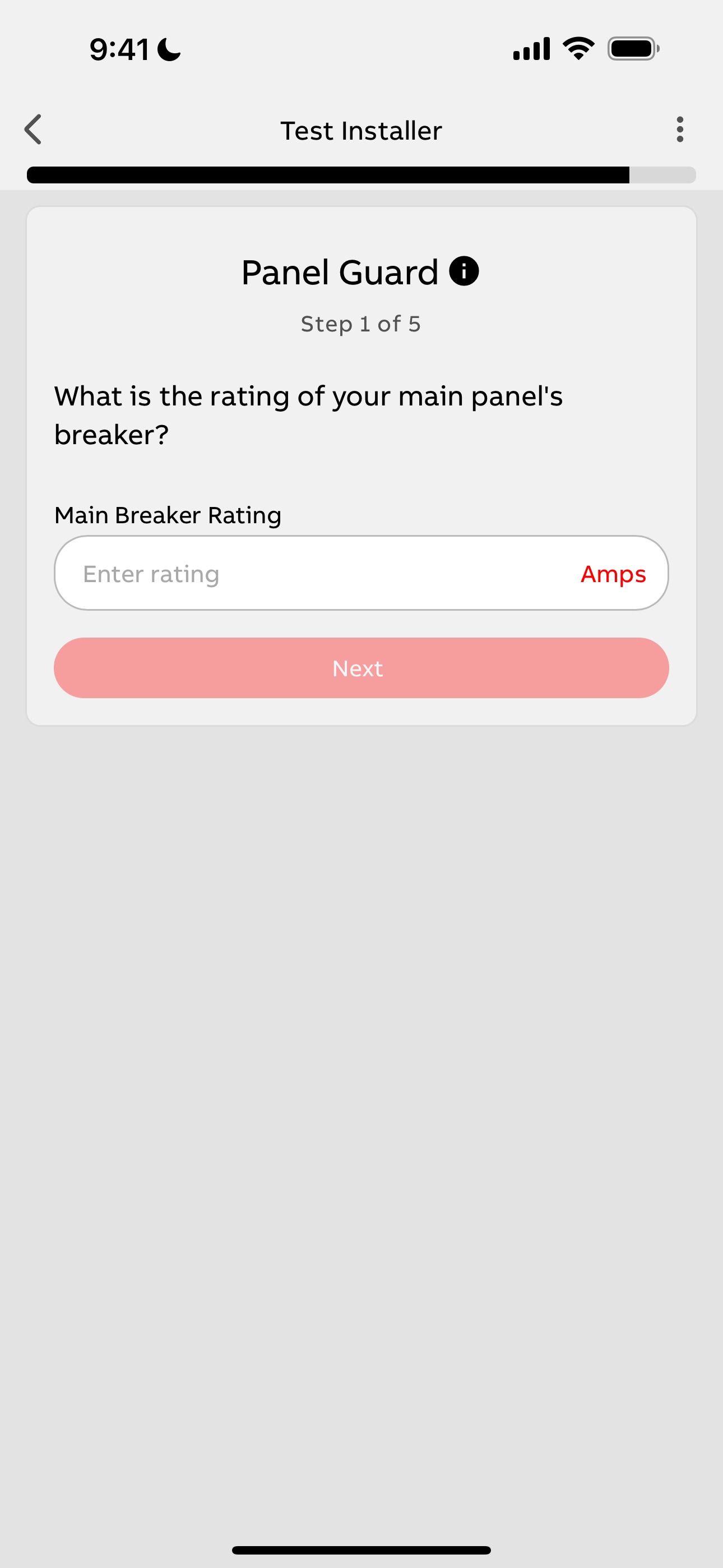 |
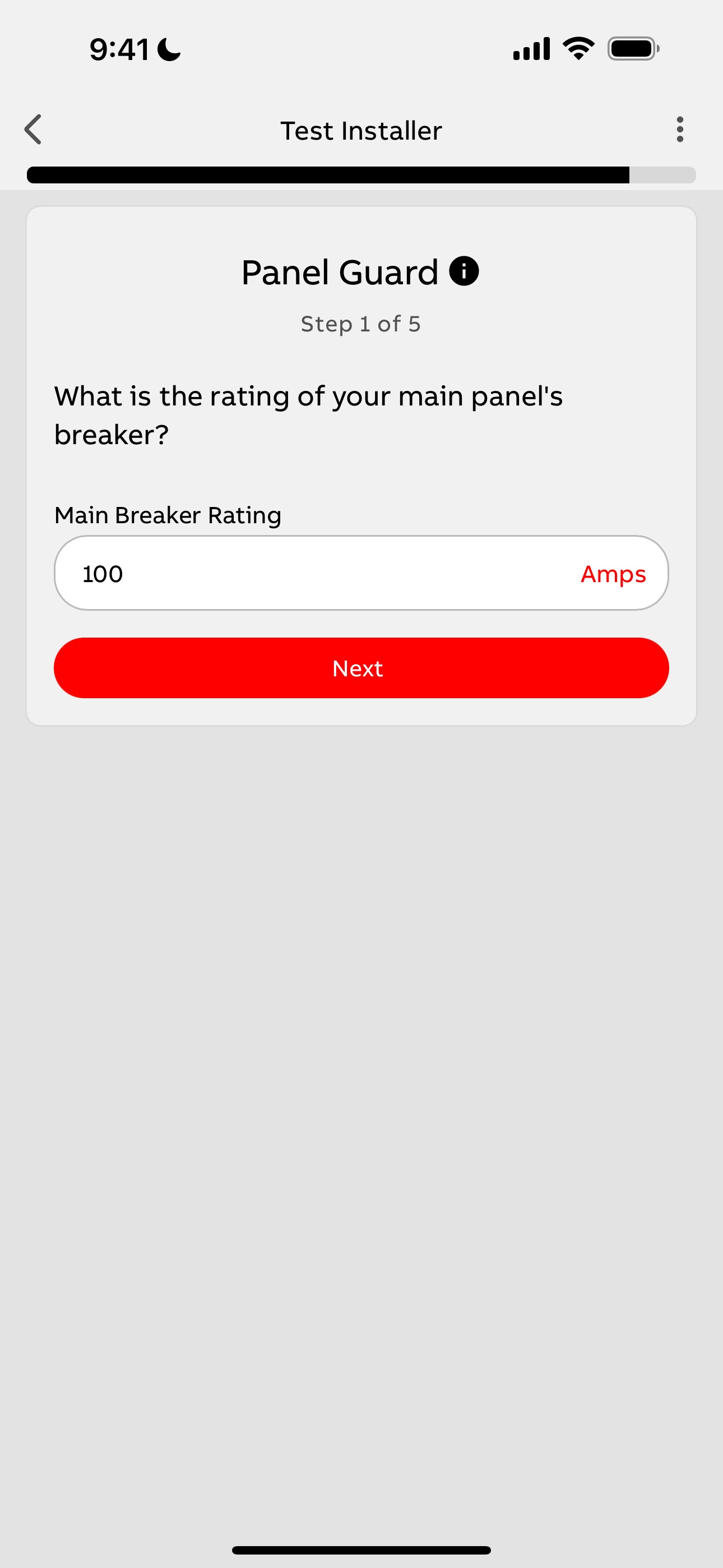 |  | 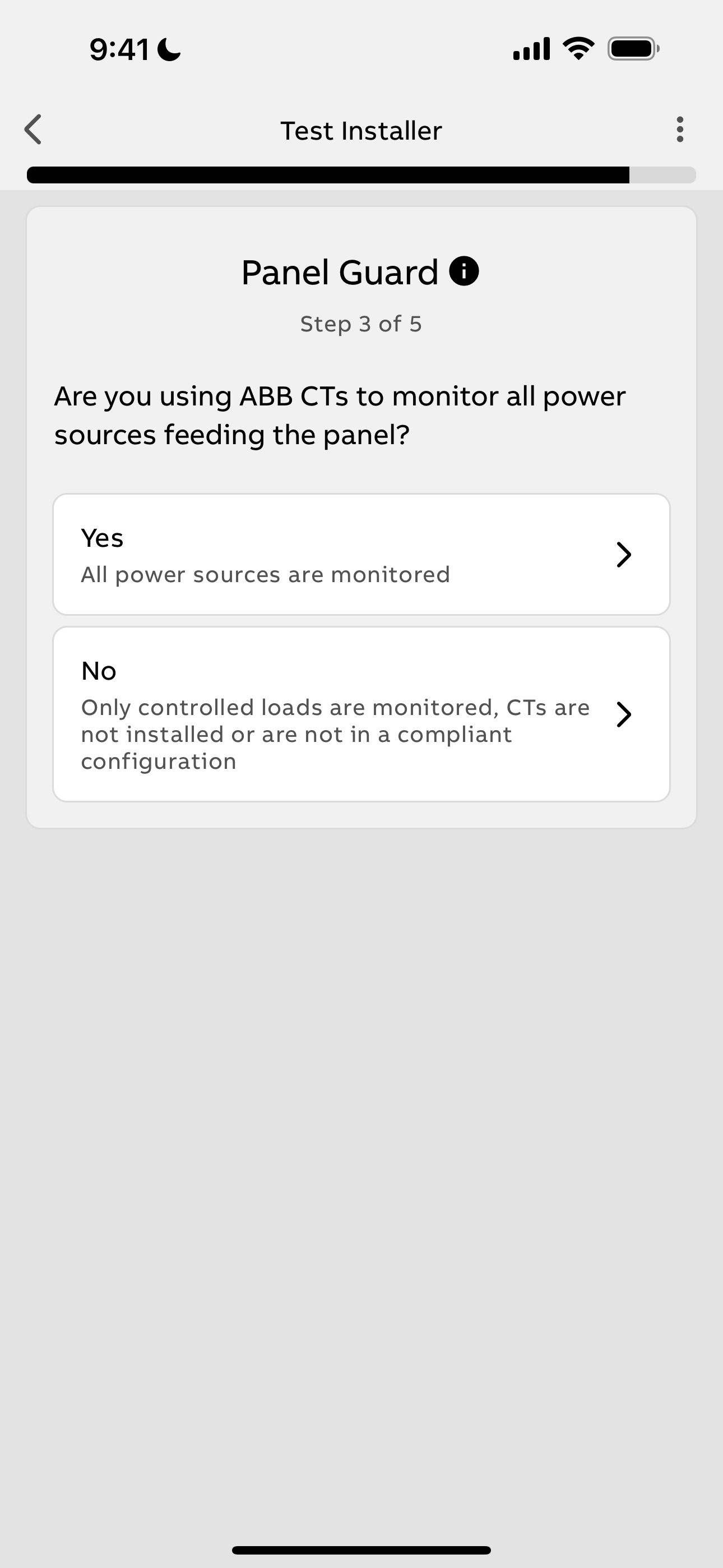 |
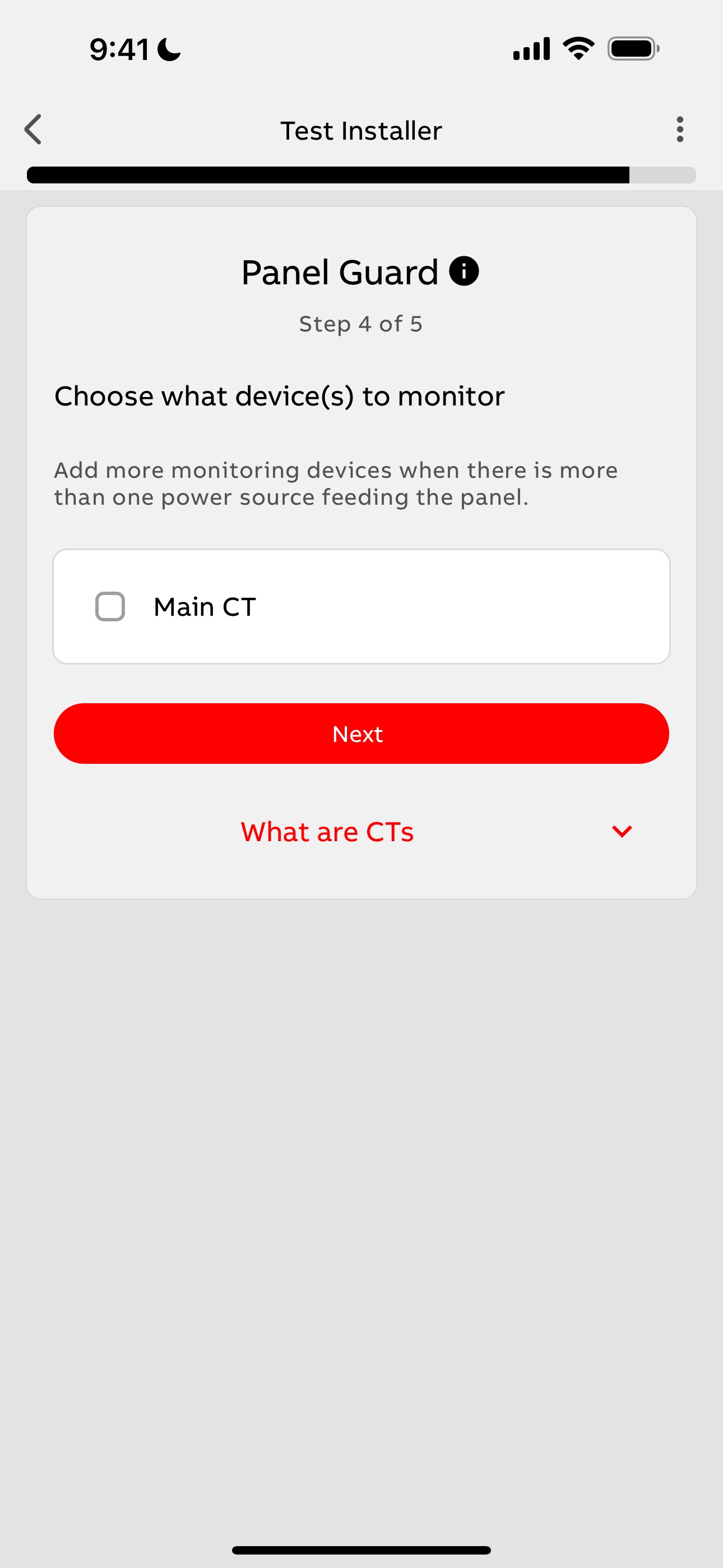 | 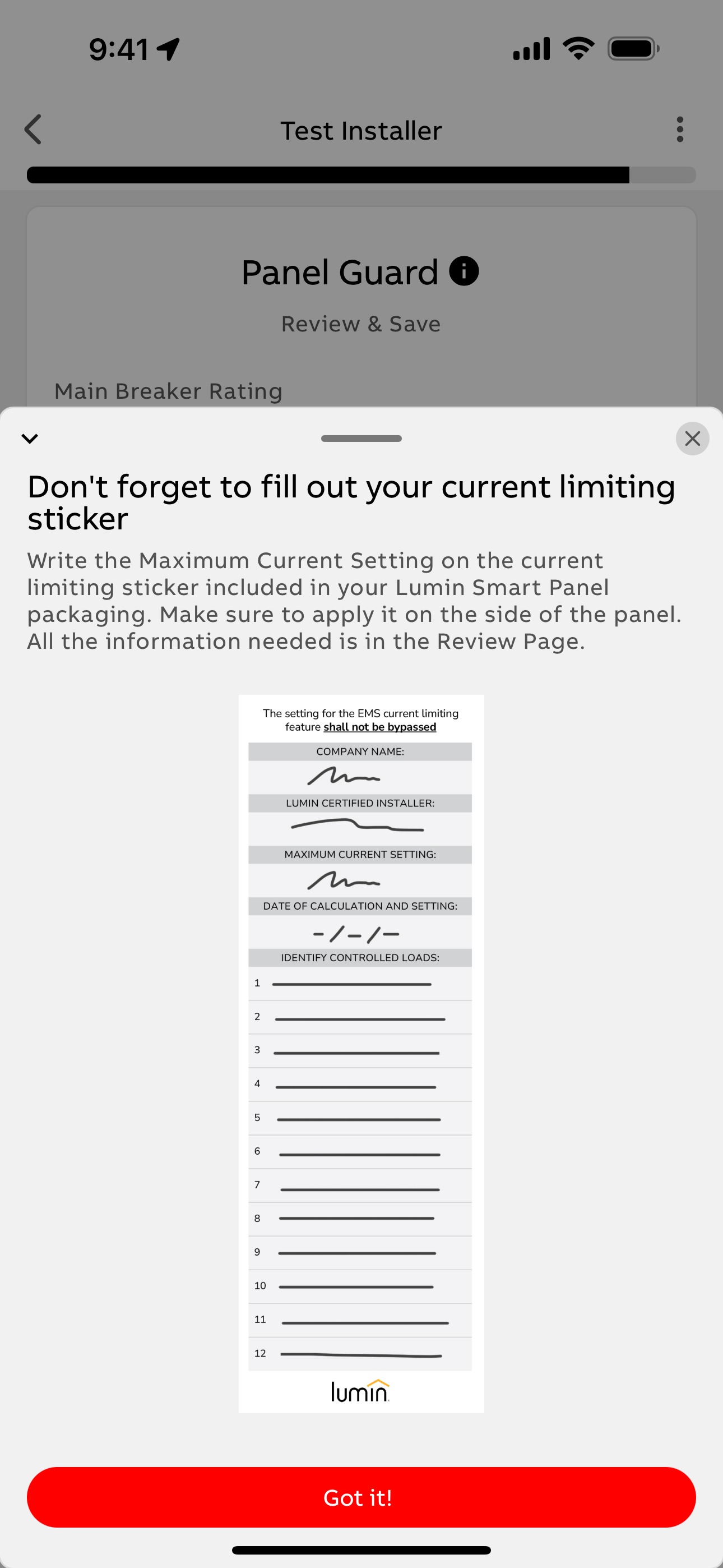 |  |
 |